Report Management
Under Administration > Reports (/v2/admin/reports), report templates, variables, and settings are managed.
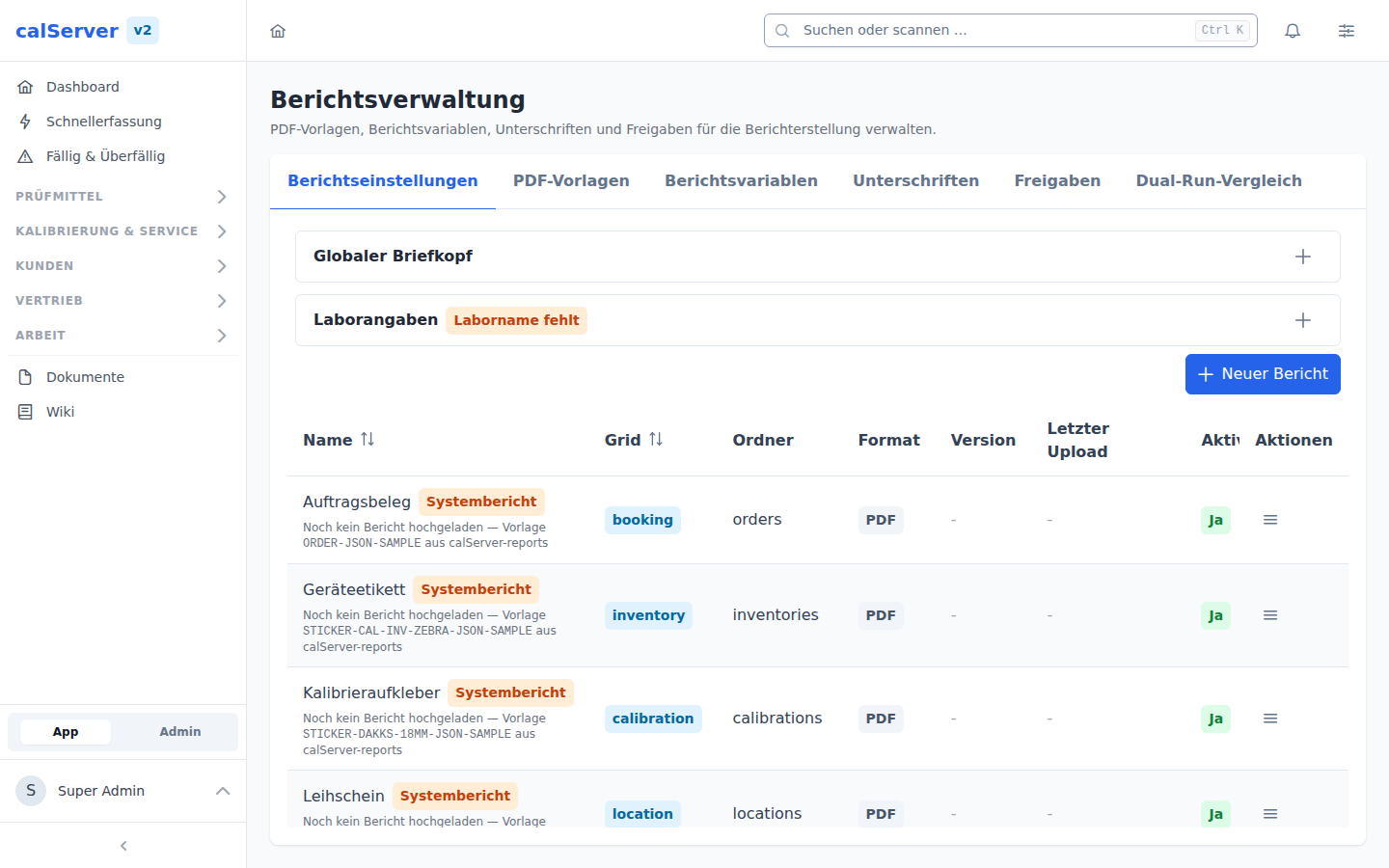
Report Templates
Templates define the layout and content of reports:
| Property | Description |
|---|---|
| Name | Template name |
| Type | Report type (calibration certificate, inventory report, etc.) |
| Format | Output format (PDF) |
| Template | JasperStarter template (.jrxml) |
Create Template
- Click New Template
- Upload the JasperStarter template (.jrxml)
- Assign a name and type
- Configure the variable mapping
- Save
Report Variables
Variables enable dynamic content in reports:
| Variable Type | Description | Example |
|---|---|---|
| Inventory Field | Data from inventory | ${inventory_number} |
| Calibration Field | Data from calibration | ${calibration_date} |
| Customer Field | Data from customer records | ${customer_name} |
| System Field | System data | ${current_date}, ${report_number} |
Report Settings
Global settings for the reporting system:
| Setting | Description |
|---|---|
| Default Template | Default report template per type |
| Logo | Company logo for reports |
| Footer | Default footer text |
| Signature | Default signature |
Signatures
The Signatures tab creates the signature places per report where the report dialog allows capturing a handwritten signature:
| Property | Description |
|---|---|
| Name | Name of the signature place |
| Report | Report the place belongs to |
| Position | Page (first/last) and location on the page, via the visual position editor |
| Role/group restriction | Only matching users may sign at this place (empty = no restriction) |
| File to DMS | Additionally archive the signed document in the DMS after capturing |
Releases (Release Rules)
The Releases tab maintains the rules behind the report dialog's "Release" action:
| Property | Description |
|---|---|
| Report | Report the rule applies to |
| Release format | PDF, PDF/A, or PDF/A Sign — the report is generated in this format on release and filed as released into the DMS. PDF/A Sign now yields PDF/A without an embedded signature (the former self-signed identity was dropped, ADR 2026-08-08); a verifiable record comes from sealing via the seal service |
| Role restriction | Rule applies only to users with one of the selected roles (empty = no restriction) |
| Group restriction | Rule applies only to members of one of the selected groups (empty = no restriction) |
One released DMS document (approve flow) is created per rule matching the releasing user's role or group. Without a matching rule, the report cannot be released — the dialog reports this accordingly.
Report Run Logs
The execution history shows all generated reports with timestamp, user, and status.