Support Ticket System
The integrated support ticket system enables structured recording and processing of support requests, bug reports, and improvement suggestions.
Ticket List
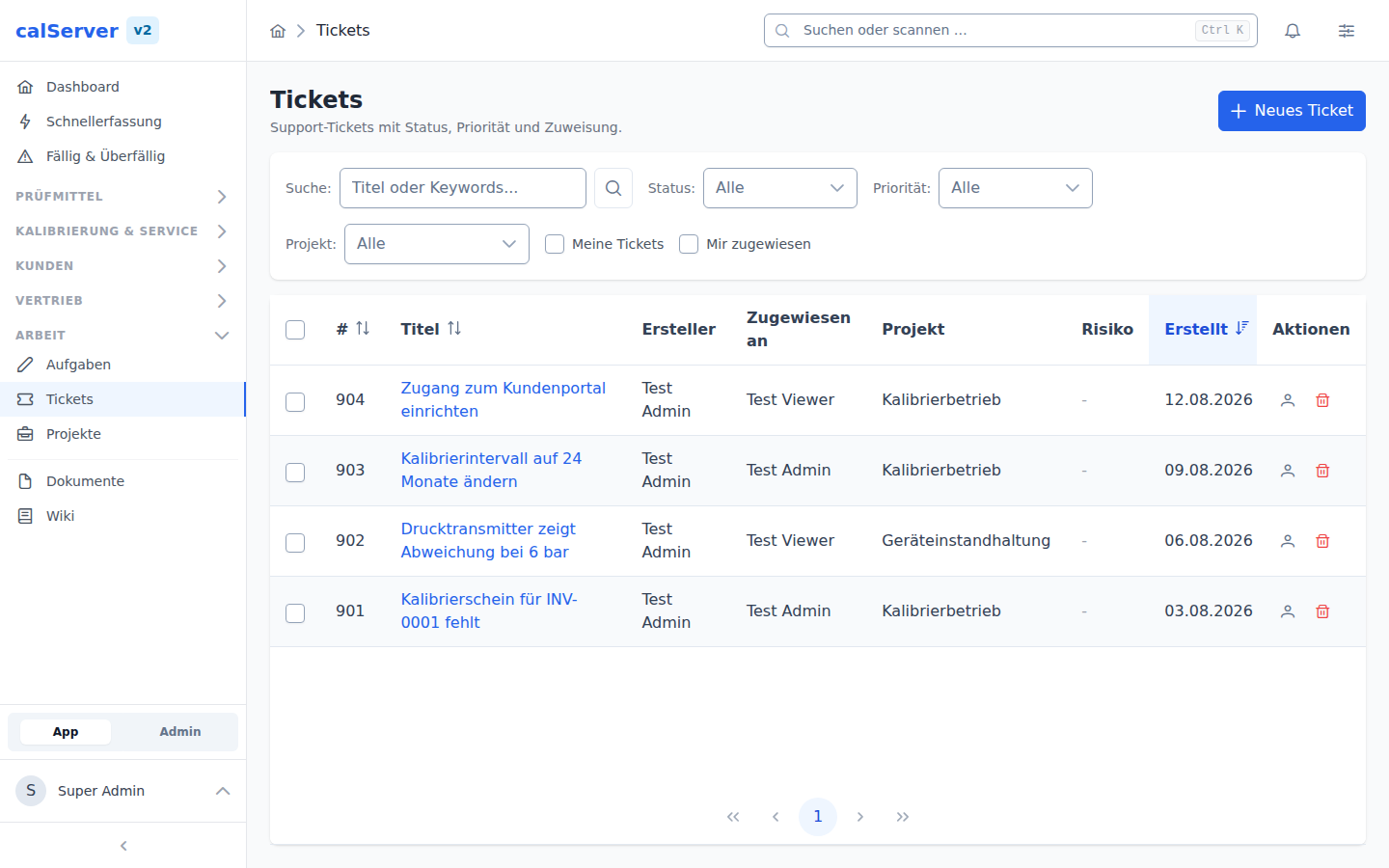
The ticket list at /v2/tickets shows all tickets in a TableMaster grid:
| Column | Description |
|---|---|
| Title | Brief description of the ticket |
| Category | Assigned ticket category |
| Priority | Urgency (Low, Normal, High, Critical) |
| Type | Ticket type (Bug, Feature, Request) |
| Status | Current processing status |
| Milestone | Assigned project milestone |
| Created On | Creation date |
| Created By | Author of the ticket |
Create Ticket
- Navigate to Tickets in the sidebar
- Click New Ticket
- Fill in the form:
| Field | Description | Required |
|---|---|---|
| Title | Descriptive brief summary | Yes |
| Description | Detailed description (rich text editor with Quill) | Yes |
| Category | Topical classification | No |
| Priority | Urgency | No |
| Type | Type of ticket | No |
| Impact | First assessment level | No |
| Probability | Second assessment level | No |
| Event | Third assessment level (only when the formula uses it) | No |
| Assigned To | Main recipient: the user who works on the ticket | No |
| Responsible Group | Group from the group administration; all members are notified | No |
| Additional Recipients (CC) | Further users who should follow along | No |
- Click Create
Assignment and Recipients
A ticket has three groups of recipients. They are independent of each other, each one is optional, and all three can be set when creating the ticket and changed later in the detail view via Edit.
| Field | Who gets notified | Switch in the user profile |
|---|---|---|
| Assigned To (main recipient) | the selected user | Receive support emails |
| Responsible Group | every member of the group | Receive support group emails |
| Additional Recipients (CC) | the selected users | Receive support emails |
The two switches are separate: someone who opted out of group emails still gets mail once the ticket is assigned to them personally, and vice versa. The reporter is treated like a main recipient; whoever triggers a change never gets an email about it.
Which groups are offered
The Responsible Group field only lists groups flagged as Support ticket under Administration > Group Management. If no group carries that flag, the list stays empty — that is a statement about the group administration, not a loading error.
Risk Assessment
A ticket is rated through up to three weighted levels: Impact, Probability and Event (the names are editable). The risk formula turns their weights into a risk value, which the risk matrix translates into a colour and a priority.
- The formula decides which levels the form asks for. The default is an assessment with two methods (impact × probability).
- The risk value is shown in colour in the ticket list and the detail view.
- While a participating level is missing, the risk value stays empty.
- Two dashboard widgets report on the assessment: Risk matrix (heatmap of two levels) and Risk levels (distribution across all levels).
- When a risk-matrix row matches, the ticket gets its priority on the next save.
Formula, levels and matrix are maintained under Administration > Ticket Management.
Ticket Details
The detail view of a ticket (/v2/tickets/[id]) shows:
- Complete ticket data with description
- Comment History — Chronological list of all comments
- Change History — All status and field changes
- Linked Inventory — Assignment to affected test equipment
Comments
Comments enable communication within a ticket:
- Rich text editor (Quill) for formatted comments
- Chronological display with timestamp and author
- Comments are immutable after creation
Inventory Link
Tickets can be linked to inventory entries:
- In the ticket detail, click Link Inventory
- Select the test equipment
- The link documents the relationship between the ticket and the affected device
The link is visible from both sides: the device detail view
(/v2/inventory/[id]) has a Tickets tab listing every ticket ever raised
for that device, with status, assignee and creation date. Clicking the title
opens the ticket.
GET /api/v2/tickets/{id}/inventories      # Devices of a ticket
GET /api/v2/inventories/{mtag}/tickets    # Tickets of a device
Permission
The device detail's ticket tab requires support_view — being allowed to
see a device does not imply seeing its tickets.
Change Tracking
All changes to a ticket are automatically logged:
- Status changes (e.g., Open > In Progress > Closed)
- Priority changes
- Category changes
- Milestone assignments
Administration
Ticket categories, priorities, types as well as the three risk dimensions with formula and matrix are configured by the administrator under Administration > Ticket Management.