Project Management
Projects bundle related work processes such as calibrations, equipment tests, and documentation into logical units.
Project Overview
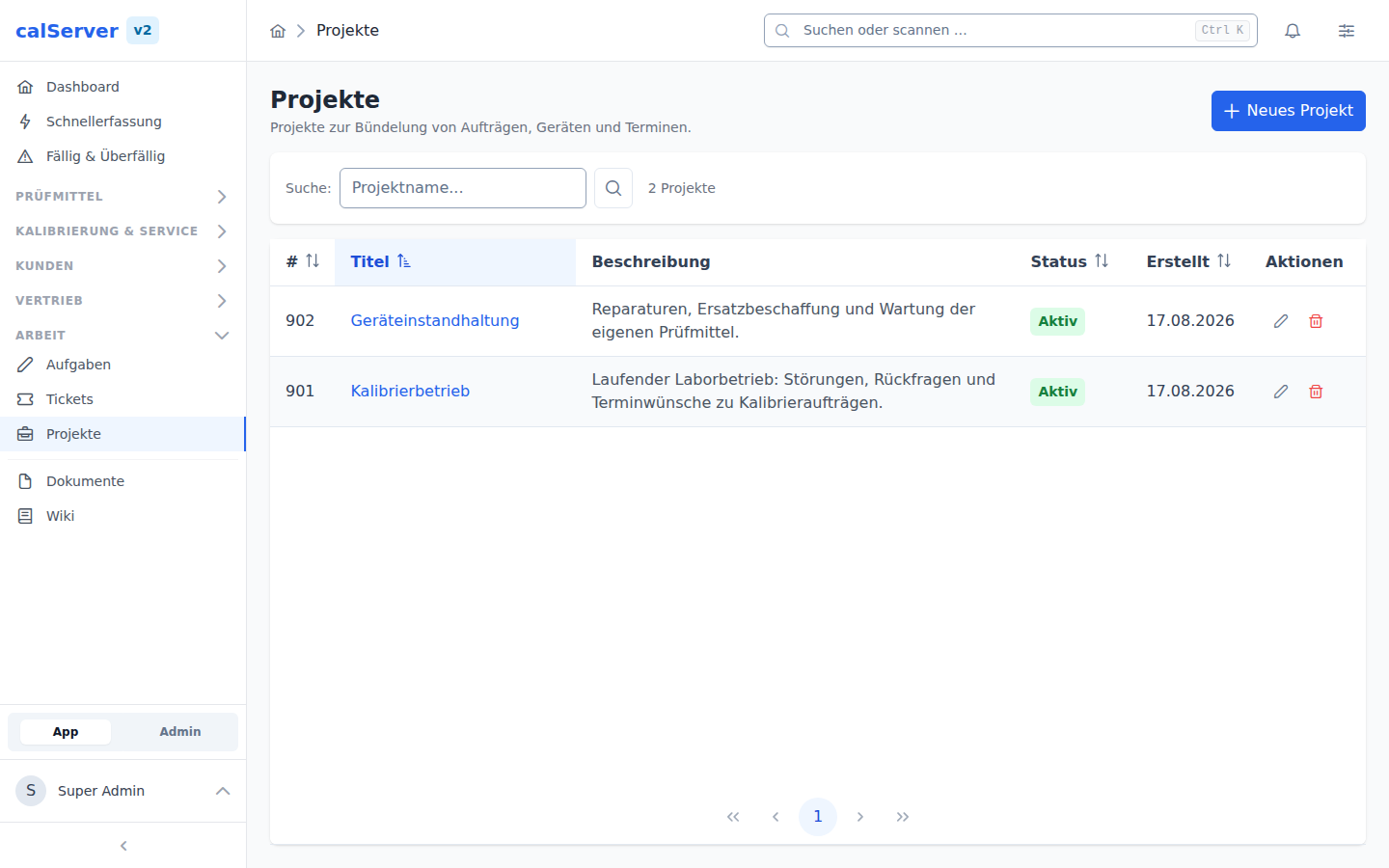
The project list is accessible at /v2/projects. The display uses the
TableMaster component.
| Column | Description |
|---|---|
| Project Name | Name of the project |
| Customer | Assigned customer |
| Status | Current project status |
| Created On | Date the project was created |
| Progress | Percentage of completion |
Status Filter
Using the status filter, you can quickly switch between open, in-progress, and completed projects.
Create Project
- Navigate to Projects > New Project.
- Enter a descriptive Project Name.
- Assign the project to a Customer.
- Click Save.
The form is rendered by the DynamicForm component and automatically validates required fields.
Project Detail
The detail view of a project is located at /v2/projects/[id]. All project
information is displayed via the DynamicDetailCard component.
Linked Resources
The following tabs are available via the SubResourceTab component:
- Devices — Inventory items assigned to the project
- Calibrations — Calibrations performed within the project
- Documents — Project-related files and reports
Link Devices and Calibrations
To link a device or calibration to the project:
- Switch to the corresponding tab (Devices or Calibrations).
- Click Add.
- Select the desired entries from the selection list.
- Confirm with Assign.
Multiple Assignments
A device or calibration can be assigned to multiple projects simultaneously. The assignment is bidirectional — it appears both in the project and in the respective device or calibration record.
Project Status
Projects go through the following status phases:
| Status | Meaning |
|---|---|
| Planned | Project is created, work has not yet started |
| In Progress | Active work is underway |
| Completed | All work items are finished |
| Archived | Project is completed and archived |
Archived Projects
Archived projects are read-only. Before editing again, the status must be changed back to In Progress.
Progress
A project's progress is automatically calculated based on completed work items and displayed as a percentage in the project overview.
Live Updates
Out of the box, other users see a new project status after reloading the page. Immediate transmission to all connected clients is optional via Pusher, see Configuration.