Customer Management
Customer management is the central entry point for managing all customers in calServer v2. Each customer has their own equipment pool. Assigning users to customers also controls who sees which equipment.
Customer Overview
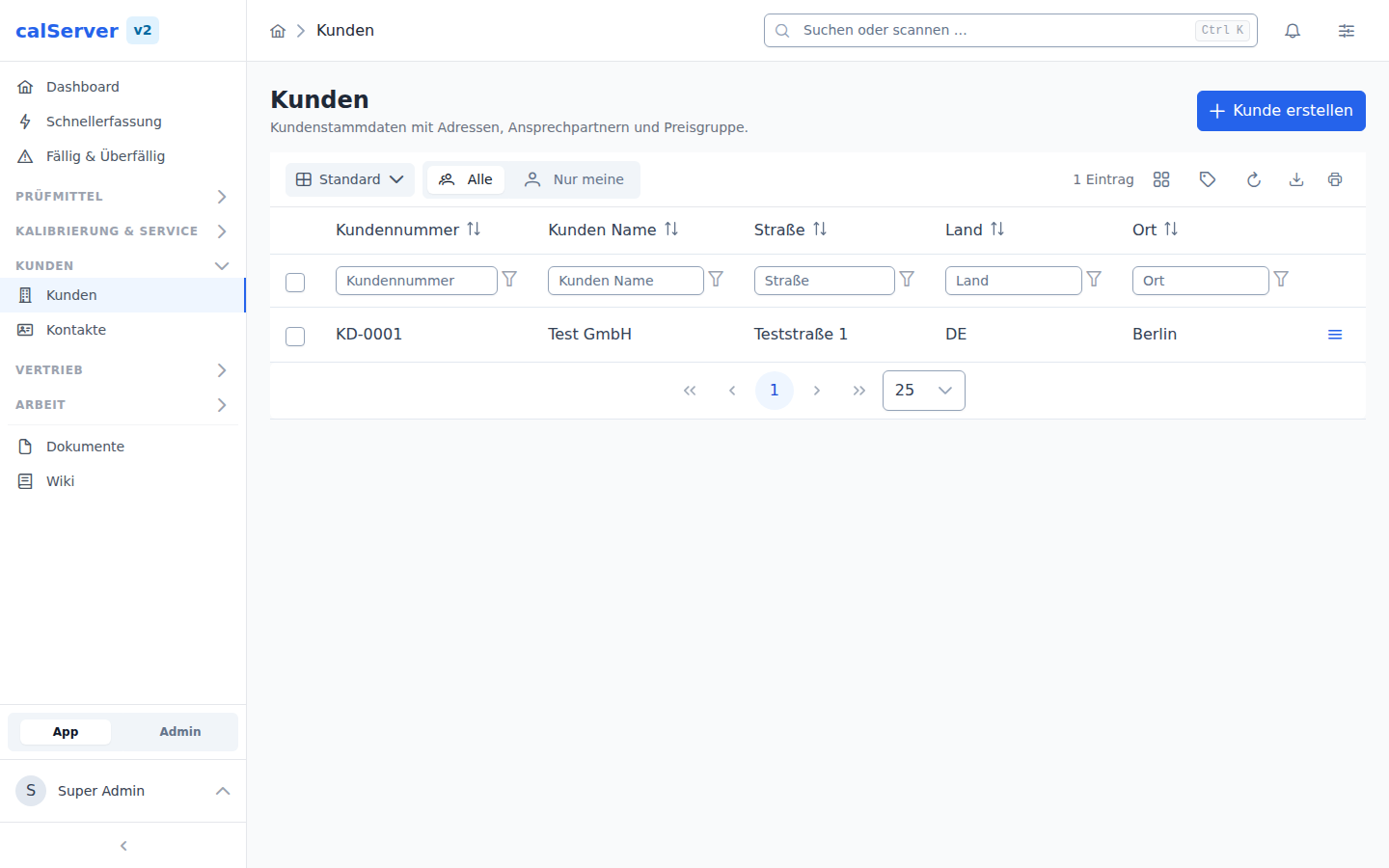
The customer overview is accessible at /v2/customer. The display uses the
TableMaster component with sorting, filtering, and search functions.
| Field Code | Field Name | Description |
|---|---|---|
| K4601 | Customer Number | Customer number |
| K4602 | Customer Name | Company name of the customer |
| K4603 | Street | Company street |
| K4604 | City | Customer location |
| K4605 | Country | Country code |
| K4606 | ZIP Code | Postal code |
| — | Price Group | Customer segment used by price resolution |
The price group is a V2 column without a V1 code; it is available in the grid through the column picker and hidden by default.
Quick Search
Using the search field in the table header, you can filter by name, city, or ZIP code. The search covers all visible columns.
Create Customer
Under /v2/customer/create, you can create a new customer. The form is rendered by the
DynamicForm component and automatically validates required fields.
- Navigate to Customers > New Customer.
- Fill in the required fields (Name, ZIP Code, City).
- Click Save.
Required Fields
Name (K4602) is a required field — the record cannot be saved without it. Which further fields are marked as required is decided by field management.
Assigning a Price Group
The price group is the customer segment price resolution takes its amount from. It is maintained on the customer, in the Price Group field of the create and edit form.
- Open the customer and click Edit (or set it right when creating one).
- Search for the group in the Price Group field and pick it.
- Save.
To sort many customers at once, use the list: show Price Group through the column picker and set the cell per row directly in the table.
No price group, no price
A customer without a price group gets no amount from price resolution, so their order positions stay at 0.00. That is intentional — the alternative would be charging a customer without a segment some other group's price. What counts is the invoice customer of the order.
Picking a group needs price_category_view on top of customers_edit: the picker
reads the group catalogue. Without that permission an already assigned group name
stays readable, but cannot be changed.
Customer Detail
The detail view of a customer is accessible at /v2/customer/[id]. All master data
is displayed via the DynamicDetailCard component.
Sub-Resources
The following tabs are available via the SubResourceTab component:
- Devices — All inventory items assigned to the customer
- Calibrations — Calibrations of the associated devices
- Contacts — Linked contact persons (see Contact Management)
Tenant Separation
Each customer has their own equipment pool. Devices and calibrations are automatically assigned to the respective customer. A cross-customer view is only available with the appropriate administrator permissions.
Permissions
Access to customer management is controlled through the RBAC system.
| Permission | Description |
|---|---|
customers_view |
View customer list and detail view |
customers_edit |
Create and edit customer data |
customers_delete |
Delete customers |
price_category_view |
Additionally required to pick a group in the Price Group field |
Deletion
Deleting a customer is only possible when no active devices or open calibrations are still assigned. Otherwise, the assignment must be resolved first.
Live Updates
Out of the box, the table shows other users' changes after a reload. With Pusher set up (see Configuration), it updates immediately when another user edits a customer.