Roles
Under Administration > Roles (/v2/admin/roles) you manage the system's user roles. Roles define permissions and control access to modules and features.
Role Overview
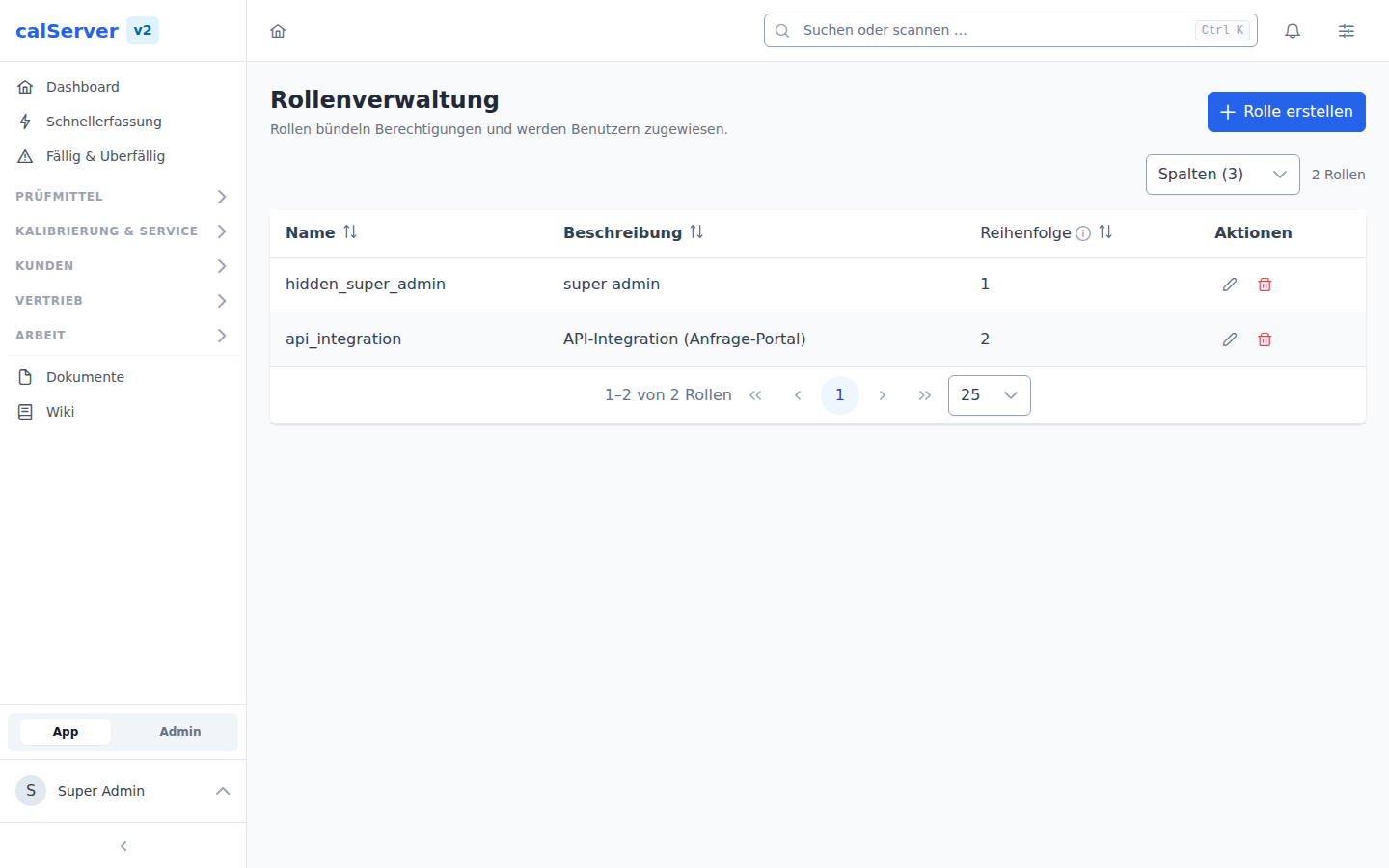
| Field | Description |
|---|---|
| Name | Technical role name |
| Description | Explanation of the role's purpose |
| Default | Default role for new users |
| Actions | Edit, Duplicate, Delete |
Shipped base roles
calServer ships six base roles. They are not created automatically but on demand: in the setup assistant under Administration > Setup, step Roles, or on the command line. The step shows what each template covers and whether it already exists here, and links on to creating the second user.
| Role | Scope |
|---|---|
| Administration | System administration: settings, users and roles, backup, fields, templates. Sees the operation, does not edit it, and does not release calibration certificates |
| Laborleitung (laboratory management) | Technical lead, including certificate release |
| Techniker (technician) | Calibrating and documenting, without release permission |
| Auditor | Read-only across the board, for assessment and internal audit |
| Buchhaltung (accounting) | Orders, prices, customers; no calibration data |
| Kunde (customer) | Customer access to their own devices and certificates, read-only |
Two rules apply:
- Existing roles stay untouched. If a role already carries a template's name, it is skipped, permissions included.
- Only existing operations are linked. An operation this installation does not have (before a V1 migration, for instance) is reported instead of being silently dropped.
# Show the templates (creates nothing):
docker exec calserver-api-v2 php artisan roles:apply-template --list

# Create every missing base role:
docker exec calserver-api-v2 php artisan roles:apply-template --force

# Only those of one operating mode, or a single one:
docker exec calserver-api-v2 php artisan roles:apply-template --profile=pruefmittel --force
docker exec calserver-api-v2 php artisan roles:apply-template Auditor --force
The operating mode from the setup assistant pre-sorts the offer: internal test equipment management is not offered Buchhaltung and Kunde. They can still be created; the operating mode does not switch anything off.
No user account is created along the way — roles come from the template, users from user management.
Create Role
- Click New Role
- Assign a Name and a Description
- Select the Permissions from the RBAC groups
RBAC Permission Groups
Permissions are organized into 27 groups:
| Group | Example Operations |
|---|---|
| Inventory Management | inventory_view, inventory_edit, inventory_delete |
| Calibration Management | calibration_view, calibration_edit, calibration_delete |
| Customer Management | customers_view, customers_edit, customers_delete |
| Location Management | location_view, location_edit, location_delete |
| Repair Management | repair_view, repair_edit, repair_delete |
| API Access | using_API |
| User Management | user_management_view, user_management_edit, user_management_delete |
| Role Management | role_edit, role_delete |
| Group Management | group_edit, group_delete |
| Field Management | field_management_admin |
| Status Management | status_view, status_edit, status_delete |
| Report Management | report_management_admin |
| File Management (DMS) | dms_view, dms_edit, dms_delete |
| Email Management | email_management_view, email_management_edit, email_management_delete |
| Basic Settings | basic_setting_admin |
| Support Management | support_view, support_edit, support_delete |
Grid Templates per Role
Each role can be assigned grid templates:
- Templates define the default column view for users with this role
- Users can customize the view individually (based on the template)
Field Visibility per Role
Through AuthItemField, you can control which fields are visible for a role:
- Certain fields can be hidden for specific roles
- This supplements the general field configuration
Duplicate role
Create new roles by duplicating an existing role and adjusting only the differing permissions.