Document Management
Document management is the central area for all files stored in the DMS. Documents can be searched, filtered, and managed here.
Document Overview
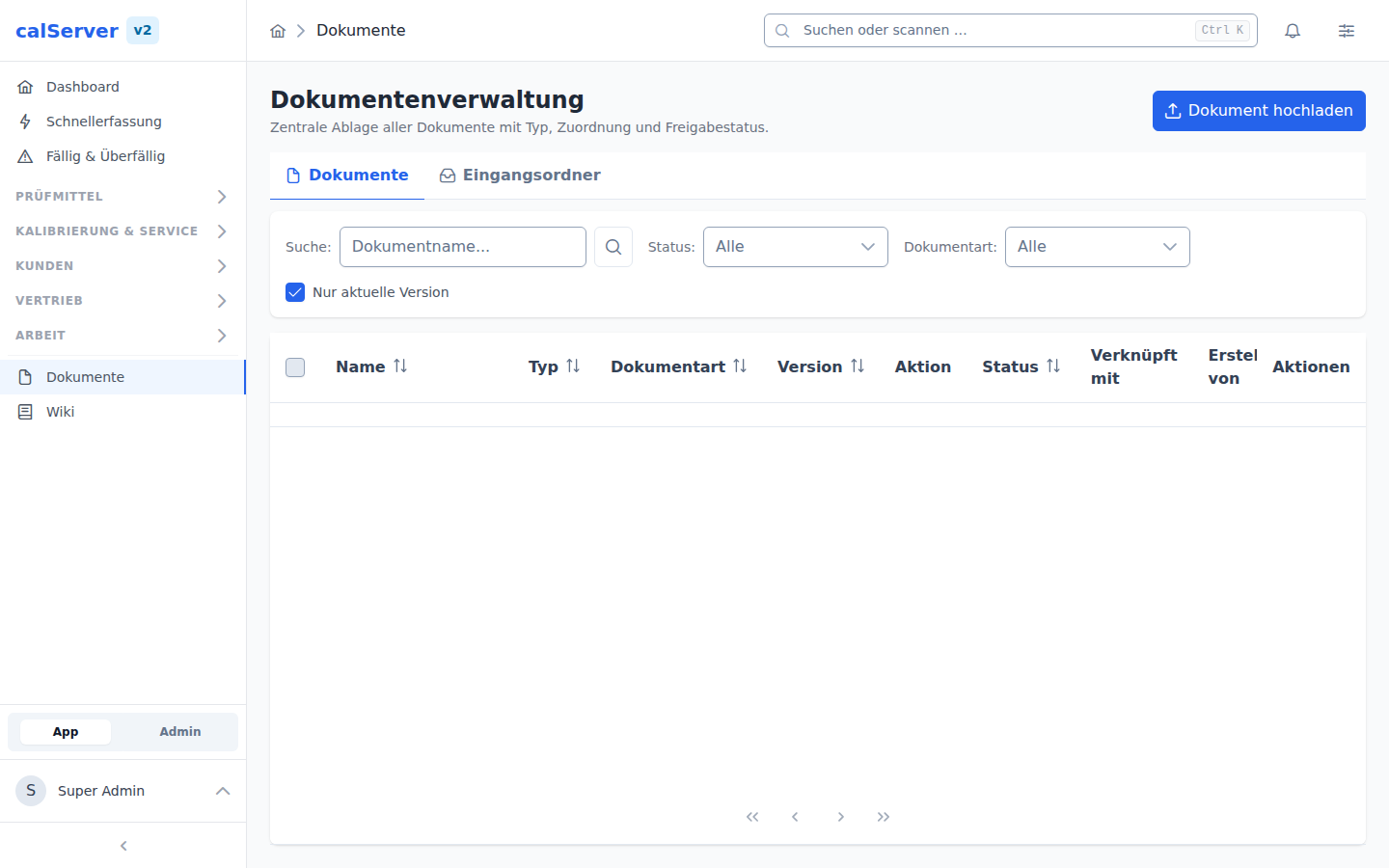
The document list is accessible at /v2/dms. The display uses the
TableMaster component.
| Column | Description |
|---|---|
| Name | Filename of the document |
| Type | File type (PDF, image, Office) |
| Size | File size |
| Uploaded On | Date of upload |
| Link | Associated entity (device, calibration) |
| Version | Current version number |
Quick Search
Use the free-text search to find documents by name, type, or linked entity. The search also considers metadata.
Document Detail
The detail view of a document is located at /v2/dms/[id]. All metadata and the
version history are displayed here.
Metadata
The DynamicDetailCard component shows the following information:
- Filename — Original name of the uploaded file
- File Type — MIME type and file extension
- File Size — Size in KB/MB
- Uploaded On — Date and time of upload
- Uploaded By — Name of the uploading user
- Linked Entity — Associated device or calibration
Preview
The Preview tab shows the file in the interface: PDFs page by page (on a tablet too), images directly. A digital calibration certificate (DCC, an XML file following the PTB schema) is shown in the DCC viewer — as a readable certificate, not as source text. For all other file types the download remains the way to the content.
Versioning
Documents in calServer v2 support full versioning.
Version History
Each version of a document is stored with the following information:
| Field | Description |
|---|---|
| Version Number | Sequential number (1, 2, 3, ...) |
| Timestamp | Date and time of the version |
| User | Uploading user |
| File Size | Size of this version |
Release Workflow (DocumentRelease)
Documents can go through a release workflow:
- Draft — Document is uploaded but not yet released.
- Under Review — Document has been submitted for review.
- Released — Document has been reviewed and released.
- Rejected — Document has been rejected and needs revision.
Release
The release workflow is optional and can be activated per document type. Unreleased documents are still visible to end users but are marked as Draft.
Search and Filters
The document list offers extensive filtering options:
- File Type — Restrict to PDF, images, or Office documents
- Time Period — Filter by upload date
- Link — Only documents of a specific device or customer
- Release Status — Filter by release status
Large Data Volumes
With a large number of documents, it is recommended to use filters to optimize loading times. Server-side pagination limits the number of simultaneously loaded records.
Download
Documents can be downloaded directly from the detail or list view. Older versions are available through the version history in the detail view.