Database
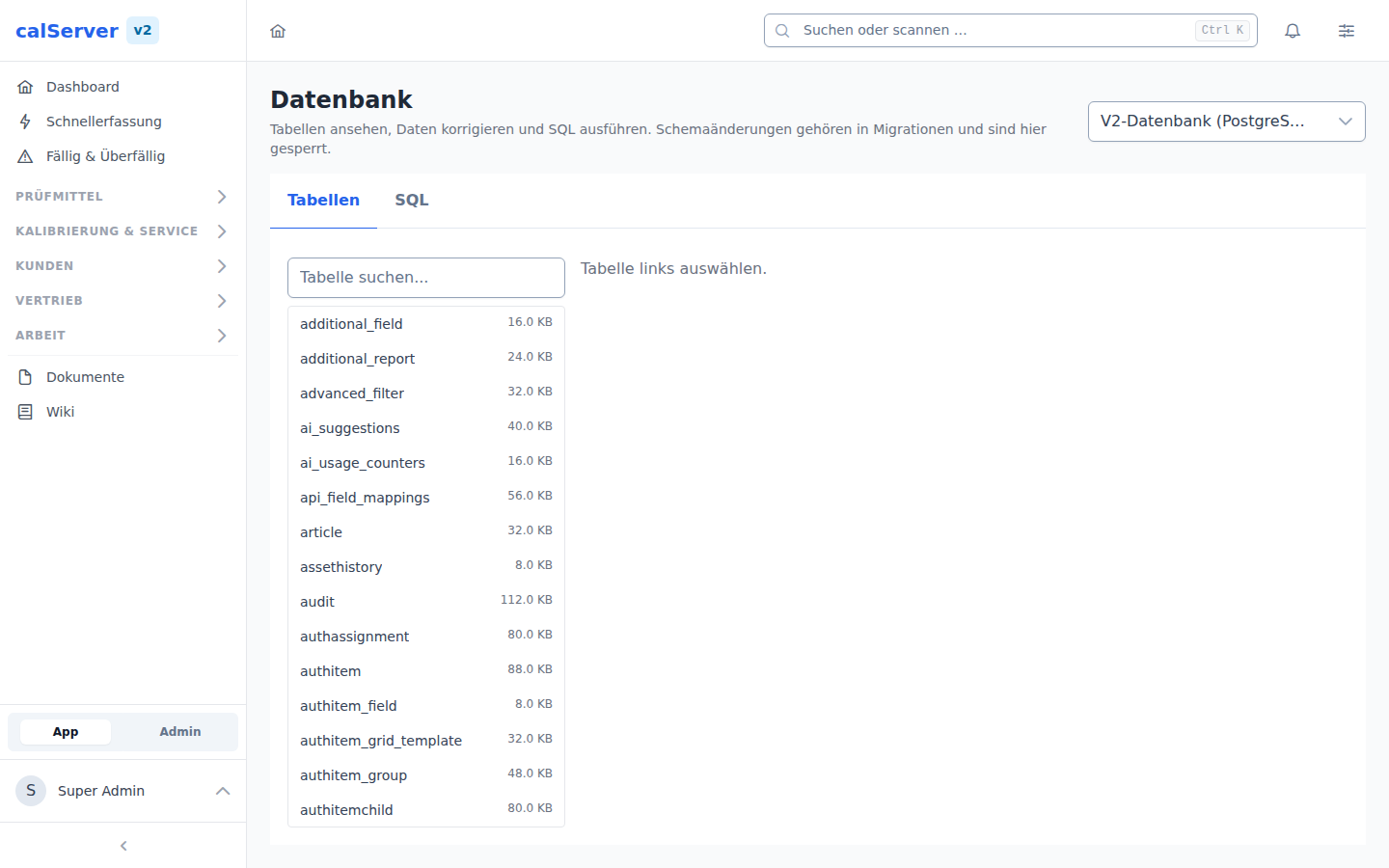
Under Administration > Database (/v2/admin/database) sits the database
manager: browse tables, correct data and run SQL.
Superadministrators only
The page is available to the hidden superadministrator alone. It bypasses every domain check — status rules, required fields and calculations do not apply here. Whoever changes data through this page is responsible for keeping it consistent.
Back up first
Direct data modifications can damage the application. Always create a backup before making manual changes (see Backup).
Choosing a connection
The database selector sits at the top right. calServer talks to more than one database in operation:
| Connection | Content |
|---|---|
| V2 database | calServer v2's own database (PostgreSQL, MySQL or MS SQL Server) |
| V1 database (MySQL) | The database of a former v1 installation, where set up for the data import |
| MET/TEAM (MS SQL Server) | The external MET/TEAM database, where set up |
Connections that cannot be used are shown with the reason rather than hidden — for instance when the matching PHP driver is missing from the container.
Tables and data
The left-hand side lists all tables and views of the selected connection, with a search box and the size. After opening a table:
- Data — paged, sortable, with a filter per column.
∅stands forNULL. - Structure — columns with type, nullability and default, plus primary key and foreign keys.
Rows can be edited via the pencil icon and deleted via the bin. Only columns that actually changed are saved; the primary key fields are locked.
Tables without a primary key
Without a primary key there is no way to guarantee that a change hits exactly one row. Such tables are read-only here — the SQL console remains available for those cases.
Masked columns
Columns holding a secret — password, token, secret, api_key and
relatives — are returned as ********, in the row browser, in SQL results and
in exports alike. In key/value tables such as property this applies to the
value as soon as the key name suggests a secret (smtp_password, for example).
Masked columns are locked in the edit dialog. Otherwise saving would write the mask over the real secret. A password can still be set through the SQL console.
Masking is not access control
The page is superadmin-only anyway — anyone who opens it could reach the
same values through SQL (SELECT password AS p defeats the masking). It
protects against accidental disclosure: screenshares, screenshots attached
to support tickets, someone reading over your shoulder.
Export
Export CSV and Export JSON download the current view — with the same column filters and the same order as the grid. Masking applies here too.
The export is streamed and capped at DB_MANAGER_MAX_EXPORT_ROWS rows (50,000
by default). If it is truncated, the interface says so after the download; the
file itself carries no indication.
SQL console
The SQL tab runs one statement per execution. Read-only by default; for
INSERT, UPDATE and DELETE the write mode has to be switched on.
How strictly "read-only" is enforced depends on the database system:
| Database system | Enforcement |
|---|---|
| PostgreSQL | The database itself rejects writes (SET TRANSACTION READ ONLY) |
| MySQL / MariaDB | Likewise (SET TRANSACTION READ ONLY) |
| MS SQL Server | No equivalent — the statement check and a forced rollback carry the load |
Schema changes are blocked in every mode: CREATE, ALTER, DROP,
TRUNCATE as well as GRANT, ATTACH and EXEC. That is deliberate — schema
belongs in migrations, otherwise a customer schema drifts and the next update
fails. Multiple statements separated by semicolons are rejected.
Long queries abort after a time limit, large results are truncated (noted above
the table). Both are configurable via DB_MANAGER_STATEMENT_TIMEOUT_MS and
DB_MANAGER_MAX_ROWS. On top of that, 30 executions per minute and user are
allowed.
History
Next to the input sits your own history: the most recently executed statements, put back into the input field with a click. Failed statements are kept as well — usually exactly the ones you want to correct.
The history belongs to its user, is limited to DB_MANAGER_HISTORY_LIMIT
entries (50 by default) and can be dropped via Clear history. The system log
is unaffected — the log entries for writing statements are not the user's to
remove.
Logging
Every change — row update, deletion and every writing SQL statement — is
recorded with user, connection and statement in the system log under the
category database-manager (see Information). Plain
reads are not logged.
What the manager cannot do
Deliberately not included, with the right route for each:
| Not included | Instead |
|---|---|
| Create/alter/drop tables | Migrations (software update) |
| Import an SQL dump | Restore a backup |
| Database users and privileges | A database operations task |
| Create a new row through a form | INSERT in the SQL console |
Adminer
calServer v2 no longer ships Adminer. Anyone who wants to operate it alongside
can point the API container's ADMINER_URL environment variable (in the Helm
chart v2.adminerUrl) at their own instance served from the same origin. That
is only necessary for the functions listed above, which the manager
intentionally does not cover.
Backup
The backup section is where database backups are configured:
- Automatic backups on a schedule
- Manual backup trigger
- View backup history