Calibration List
The calibration list shows all recorded calibrations in the system and is accessible at /v2/calibration. The display uses the TableMaster component.
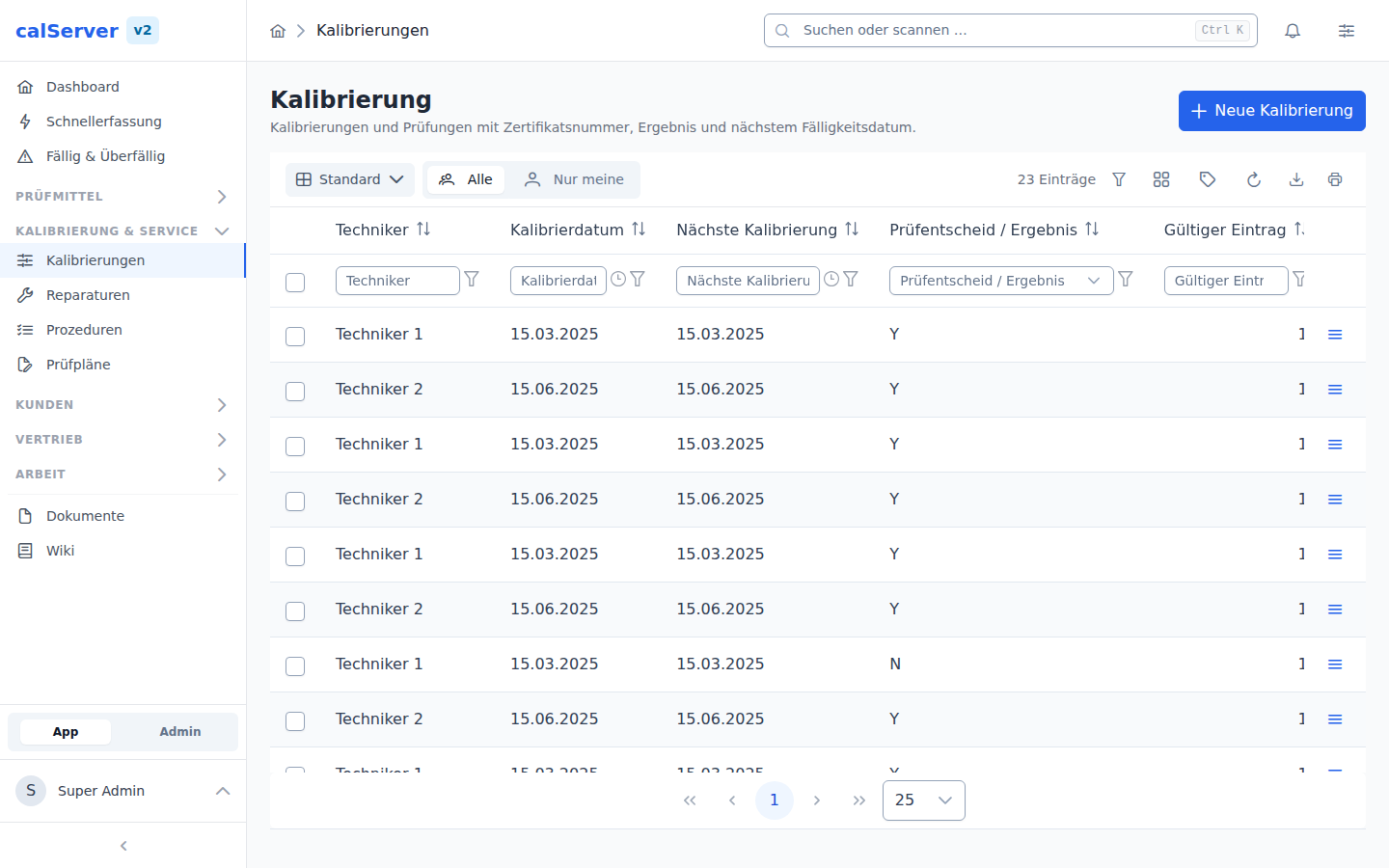
Default Columns
| Column | Metrology Code | Description |
|---|---|---|
| Technician | — | Performing calibration technician |
| Calibration Date | C2301 |
Date of calibration |
| Next Calibration | C2306 |
Due date of the next calibration |
| Result | C2316 |
Calibration result (passed/failed) |
| Valid Entry | — | Indicates whether the entry is valid |
| Certificate | — | Linked calibration certificate document |
| ID No. | — | Inventory number of the calibrated device |
| Manufacturer | — | Manufacturer of the calibrated device |
| Model | — | Model designation of the device |
| Serial Number | — | Serial number of the device |
| Inventory Status | — | Current status of the linked inventory item |
| CTag | — | Unique calibration tag |
Link to Inventory
The columns ID No., Manufacturer, Model, Serial Number, and Inventory Status come from the linked inventory item. Clicking the ID No. opens the inventory detail view.
Row Actions
The action menu for each row provides the following options:
- View — Opens the calibration detail view (
/v2/calibration/[id]) - Edit — Opens the edit form
- Delete — Removes the calibration after confirmation
Filters and Search
Column Filters
Each column offers a built-in filter in the column header. Particularly useful are:
- Date range filters for Calibration Date and Next Calibration
- Result filter to display passed or failed calibrations
- Status filter by entry validity
Advanced Filters
The Advanced Filters button allows you to create complex queries:
Example: All overdue calibrations for a specific customer
  → Next Calibration < today
  → AND Customer = "Sample Corp."
Export
The current view can be exported as a CSV or Excel file. The export includes all visible columns, taking active filters into account.
Column Selection
Additional columns can be enabled via the Column Chooser in the toolbar. All configured C23xx fields are available as columns.
Device type
The Device type column can be enabled as well. It shows the type of the calibrated device — the value a lab groups its work by ("every multimeter due this month"), where the asset number only names the individual device.
The column is filterable: a contains filter on "Multi" finds every
calibration on a device of that type. It cannot be sorted.
Read-only
The device type is maintained on the device (inventory detail view), not on the calibration. This column only displays it — otherwise a change made here would silently change every other calibration of the same device as well.
Identifying Overdue Calibrations
Calibrations whose due date has passed are highlighted in the table. This lets you see at a glance which devices urgently need recalibration.
Create New Calibration
The + New button takes you to the Create Calibration page (/v2/calibration/create).