Inventory List
The inventory list is the central overview of all registered test and measuring equipment in calServer v2.
It is accessible at /v2/inventory and is based on the TableMaster component.
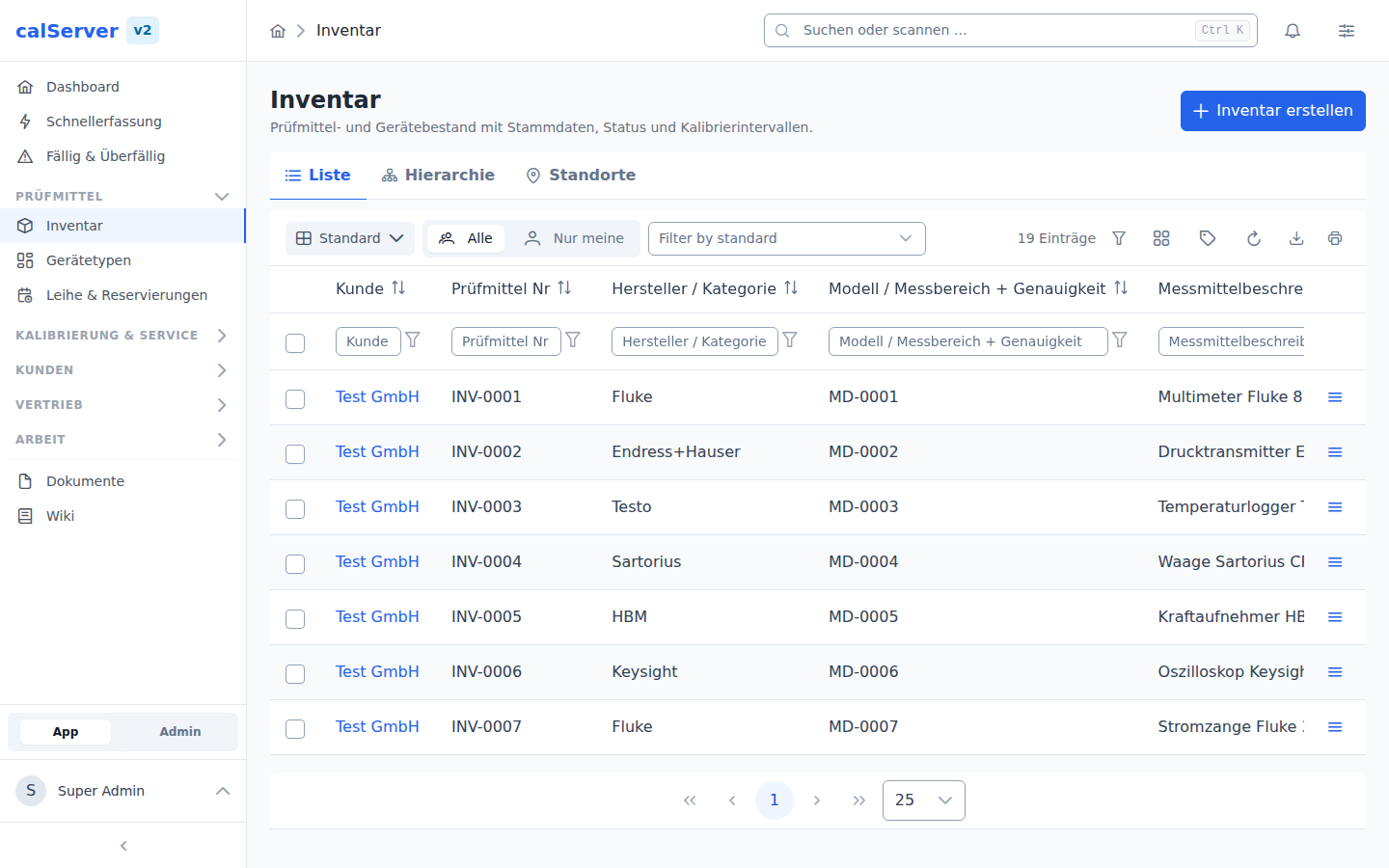
Default Columns
The table displays the following columns by default:
| Column | Description |
|---|---|
| Customer Assignment | Assigned customer of the inventory item |
| Inventory Number | Unique identifier (field I4201) |
| Manufacturer | Device manufacturer (field I4202) |
| Model | Model designation (field I4203) |
| Serial Number | Device serial number (field I4206) |
| Last Calibration | Date of the last performed calibration |
| Expiration Date | Due date of the next calibration |
| Inventory Status | Current status of the item (field I4211) |
| Condition | Physical condition of the device |
Customize Column Selection
Using the Column Chooser (gear icon in the toolbar), you can show or hide additional columns. The selection is saved per user.
Row Actions
Each row offers the following options via the action menu:
- View — Opens the detail view of the inventory item (
/v2/inventory/[id]) - Edit — Opens the edit form with all fields
- Duplicate — Creates a copy of the item with pre-filled fields
- Delete — Removes the item after confirmation via the DeleteDialog
Deleting Inventory Items
Deleting an inventory item also removes all associated calibrations and repairs. This action cannot be undone.
Filters and Search
Quick Filters
Each column has a built-in column filter. Click the filter icon in the column header to filter by specific values.
Advanced Filters
The Advanced Filters button in the toolbar lets you combine complex filter criteria:
- Combine multiple conditions with AND/OR
- Date range filters for calibration dates
- Status filters for inventory status and condition
- Customer filters via autocomplete selection
Export
The filtered view can be exported in the following formats via the Export function:
- CSV — Comma-separated values for spreadsheet applications
- Excel — Directly as an
.xlsxfile
Export Scope
The export takes into account the currently active filters and visible columns. Only the displayed data is exported.
Create New Item
The + New button in the toolbar takes you to the Create Inventory page (/v2/inventory/create).
Pagination
The table supports server-side pagination. The number of entries per page can be adjusted via the dropdown at the table footer (10, 25, 50, 100 entries).