Groups
Under Administration > Groups (/v2/admin/groups) you manage user groups. Groups bundle users, customers and contacts and control responsibility in the ticket system.
Concept
- Each user can belong to one or more groups.
- Customers and contacts can be assigned to a group.
- Release rules for reports and the visibility of documents not yet released can be restricted to groups.
In V2, groups do not control the visibility of customer data
Which customers, equipment and contacts a user sees is determined solely by their direct customer assignment (on the user or on the customer). Assigning a customer to a group does not give its members access in V2. Assignments that were created through groups in V1 are kept after the data migration.
Global access
Users with customer_global see all customers and contacts, users with inventory_global all equipment, provided their personal switch for global access is on.
Group Overview
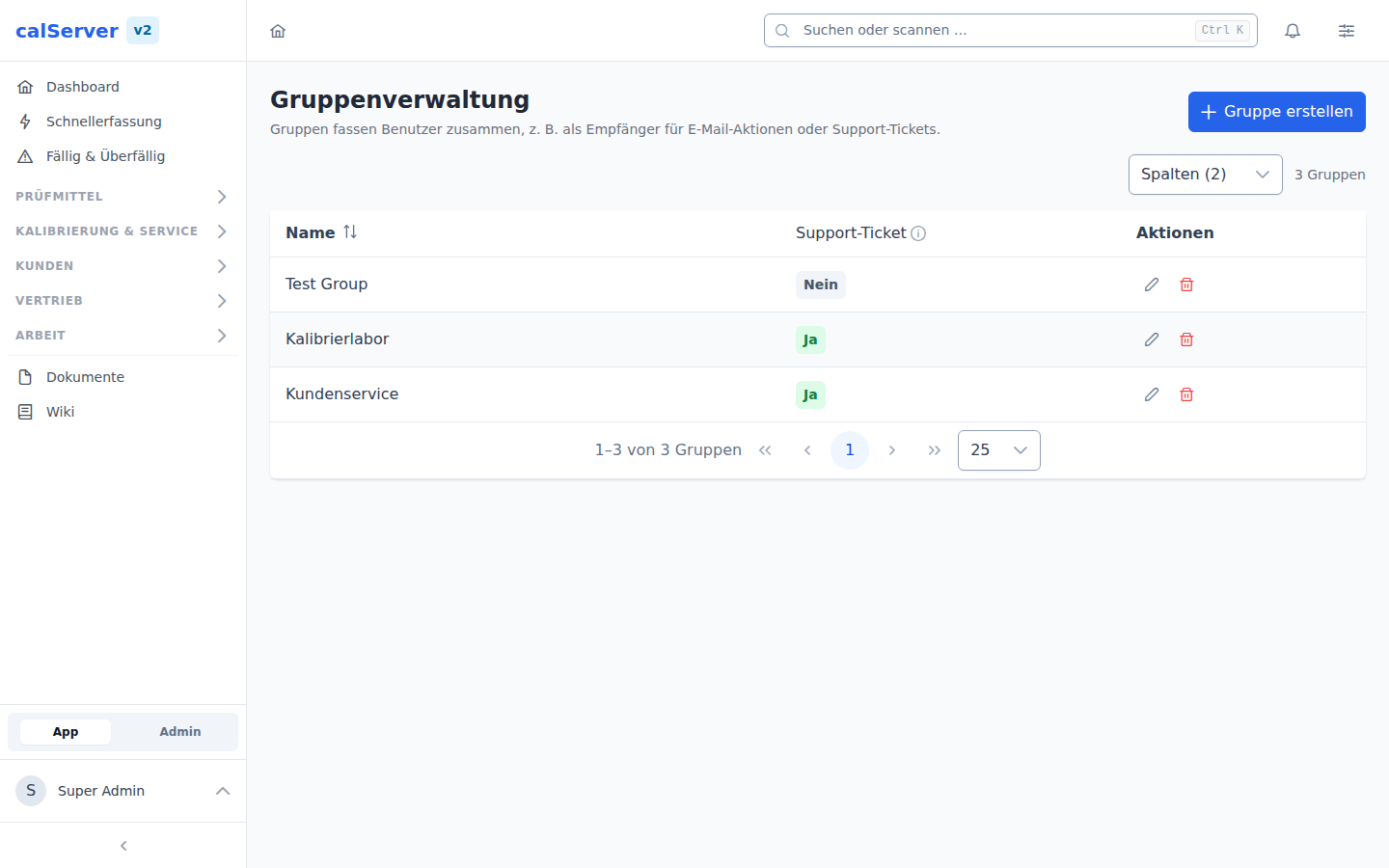
| Field | Description |
|---|---|
| Name | Group name |
| Description | Explanation of the group's purpose |
| Members | Number of assigned users |
| Support ticket | Group is offered in the ticket form as Responsible Group |
| Actions | Edit, Delete |
Create Group
- Click New Group
- Assign a Name and a Description
- Assign Users to the group
- Save
Groups for Support Tickets
The Support ticket flag decides whether a group is offered in the ticket form under Responsible Group. Only flagged groups appear there; without such a group the field stays empty.
When a ticket is assigned to a group, calServer notifies every member who has Receive support group emails enabled in their profile. That switch is independent of Receive support emails, which governs personal assignment and CC — see Support Ticket System.
Typical Use Cases
- Ticket responsibility: A team handles the tickets of its group together
- Report release: A release rule applies only to members of certain groups
- Overview: Bundle the customers and contacts of one area in one place