Reservations and Locations
Loan and location management in calServer v2 is fully ported from v1: every location/loan entry is a movement of the device, exactly one entry per device is the current location, and loan periods can be checked for overlaps.
Location List
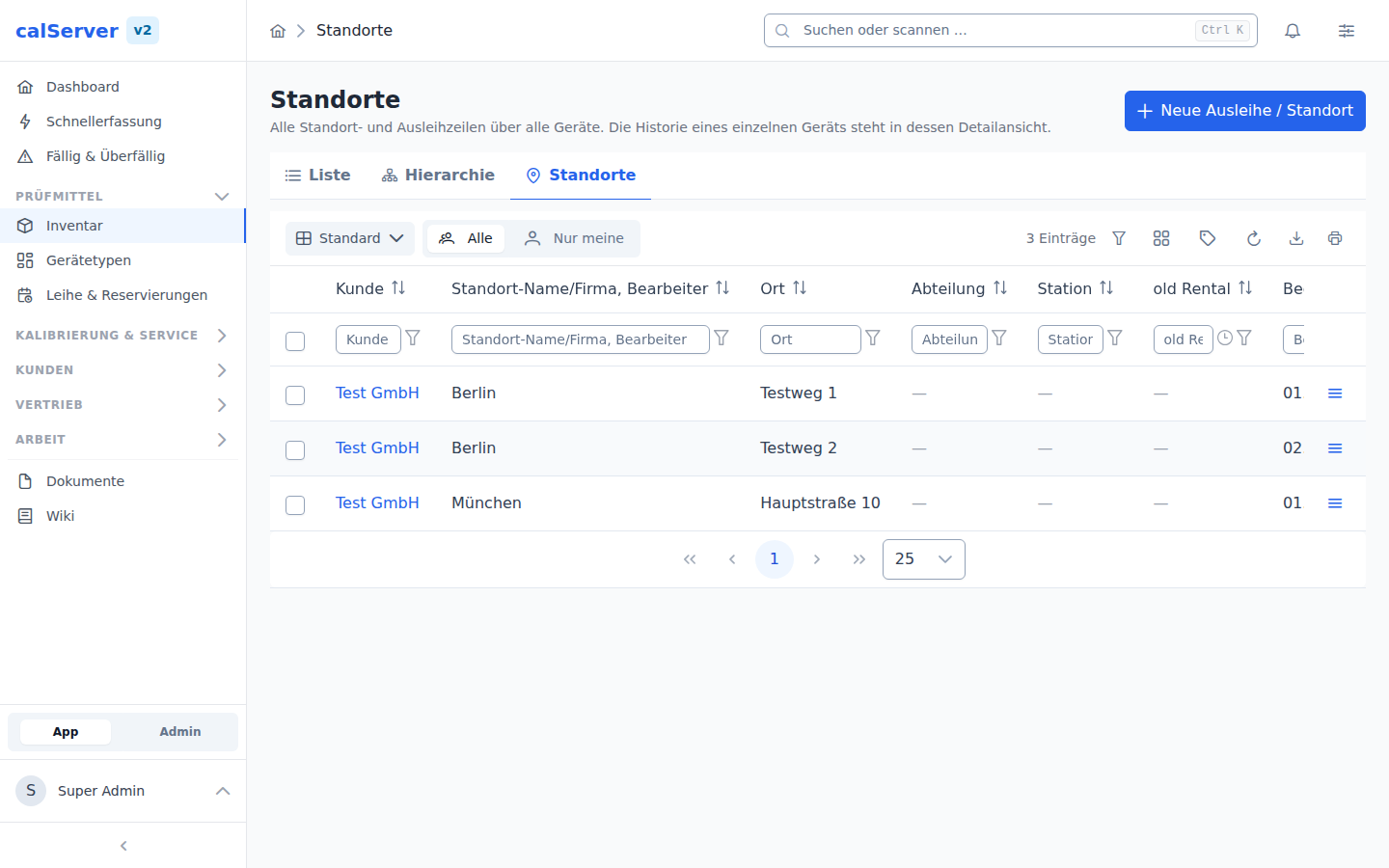
The location list at /v2/location shows all recorded locations and loan activities. "New loan / location" creates an entry with the configurable form from the field administration; the grid columns also come from the field configuration.
Current location (current record)
- Saving an entry with the active flag set automatically demotes all other entries of the same device — there is always exactly one current location.
- When the current entry is deleted, the most recent remaining entry is promoted automatically.
- The current location is marked with a "Current" tag on the inventory detail page, Locations tab.
Loan and return
From the inventory detail page (Locations tab):
- Loan — creates a new loan entry (loan start, optional loan end); the entry becomes the current location.
- Return — sets the loan end to today (like the v1 return).
- The history shows loan start/end of all previous entries.
Bulk loan from the inventory grid
In the inventory grid, several devices can be marked and loaned/moved together via the "Location/Loan" bulk action (v1: "Add to Location"):
- The dialog shows the full location form from the field configuration.
- "Copy values from the last location entry": locks the fields marked for copying (
allow_copyin the field administration); on save they are filled per device from its last entry. - "Check availability": devices with an overlapping loan period are skipped and reported.
- One new entry is created per device and becomes the current location.
Availability and reservation
GET /api/v2/inventories/{id}/rented-datesreturns a device's occupied loan periods (basis for reservation UIs).- When creating/editing, the availability check can optionally be enabled: if the period overlaps an existing loan period, the entry is rejected with "period occupied" (incl. conflict details).
- Open entries without a loan end only block the start day.
Reservation calendar
The reservation calendar at /v2/reservation (menu Reservations) shows all loans and reservations as a calendar view (month/week/day) — the v1 calendar booking on top of the location module:
- Events are the loan entries of the visible window; titles in the v1 format
[customer] serial number - manufacturer - description, colors from the status (type "location"), a legend shows the status colors. - Filters: by status; the feed (
GET /api/v2/reservations/calendar) additionally supports device and customer. - Booking: select a period in the calendar → the "New loan / location" form opens with the loan start/end prefilled. Booking goes through
POST /api/v2/reservationsand needs onlyreservation_edit(v1 parity); the availability check is always enforced. The loan receipt mail can be deselected while booking (checkbox, default: on). - Move/extend via drag & drop (requires
reservation_edit): changed periods are always checked for overlaps — on conflict the event snaps back and the occupied period is reported. Open loans without an end date stay open when moved. - Details: clicking an event opens the loan entry.
Device picker: rental units
Whoever wants to lend a device has to be able to find it. The picker is available in two places:
- In the calendar via "Find device" as a collapsible sidebar (a slide-in panel on narrow screens).
- As its own page at
/v2/reservation/search(menu Lend device).
Both show the same selection.
Adjusting the width: a drag handle sits between the device picker and the calendar — the slim bar in the gap. Use it to shift how much room each side gets: wider while you search for devices, narrower once the month is what matters. The width you set is remembered; calendar and search page keep it separately, because the picker is a side column on one and the main area on the other. It works without a mouse too: tab to the handle, then Left/Right arrow (with Shift for larger steps) or Home/End for the narrowest and widest setting.
What you pick is not a device but a rental unit:
| Kind | Meaning |
|---|---|
| Single device | A rentable device without sub-devices. |
| Set (test case) | A rentable device with sub-devices. Its parts expand inside the row and do not appear as separate hits. |
A case with five parts is therefore one row instead of six. "Show individual parts" surfaces the parts as separate hits when you do need them.
Which devices appear: a device is rentable when it belongs to at least one category flagged rentable (categories). Devices whose status is inactive or hidden do not appear — a device in repair is neither offered nor lent out as part of a set.
Sets come from the device hierarchy, not from categories: what matters is the parent device (field "Accessory to" / parent_asset_number). Where the hierarchy is not maintained there are simply no sets and the search shows single devices.
When nothing is offered at all, the picker names the reason instead of showing an empty panel: no category carries the flag, the flag is set but no device is assigned to those categories (they are named), the devices belong to customers you are not cleared for, they are out of circulation, or they sit under a device that was never released. Buttons for the fix stand next to it: "Manage categories" (needs category_edit) and "Show blocked". GET /api/v2/rental-units/categories carries these counters as meta.diagnosis, and only when data is empty.
A device type is not a device
Device types pick from the same category catalogue as devices do. Assigning the category to the device type leaves the category admin looking maintained while the loan module stays empty: a device type describes a design, what gets lent is the individual device. A device only becomes rentable through its own category assignment.
Searching and filtering
- Full-text search across asset number, serial number, description, manufacturer, model and category name. If you know the asset number, type it; if all you know is "clamp meter", the category name finds it.
- Period (from/to). Without a period no availability is shown. In the calendar the picker adopts the visible calendar window automatically; your own entry takes precedence.
- Category facets as a tree with counters.
3/12means three of the category's twelve devices are free in the chosen period. Categories without rentable devices are hidden. A parent category includes its children. - "Available only" hides occupied units. The filter is applied server-side, so the result count is the real one.
Availability indicator
Per unit a tag shows the state for the chosen period:
| State | Meaning |
|---|---|
| Free | The unit is available for the whole period. |
| … parts occupied | For sets: individual parts are occupied, the root device is not. |
| Occupied until DD.MM.YYYY | The unit is occupied; below it says when it becomes free again. |
The indicator is a preview, not a hold
The binding check happens when booking. If two people book at the same time, the second gets a conflict message — no double booking occurs.
Set booking
"Lend" on a unit opens the booking dialog with device and period prefilled. For a set the dialog lists the parts that come along.
Set booking is atomic: one loan entry per part, all in a single transaction. If even one part is occupied in the requested period the whole booking is refused and the blocking asset number is named. A half-lent case would be a state the return flow could no longer resolve cleanly.
Booked sets stay together:
- Moving in the calendar always moves the whole set. Dragging one part takes the others with it.
- Cancelling removes all loan entries of the set together (
DELETE /api/v2/reservations/sets/{id}, requiresreservation_delete). - The loan receipt is sent once for the whole set, not per part.
No partial booking
Individual parts of a set cannot be deselected. If a part is needed on its own, it can be booked as its own unit via "Show individual parts".
Endpoints
| Endpoint | Purpose | Permission |
|---|---|---|
GET /api/v2/rental-units |
Search rental units (period, full text, categories, available only) | reservation_view |
GET /api/v2/rental-units/categories |
Rentable category tree with counters | reservation_view |
POST /api/v2/reservations/sets |
Book a set atomically | reservation_edit |
PATCH /api/v2/reservations/sets/{id}/schedule |
Move a set together | reservation_edit |
DELETE /api/v2/reservations/sets/{id} |
Cancel a set | reservation_delete |
Loan receipt by e-mail
As in v1, borrower and delivery contact are notified automatically on booking and changes — the loan receipt is attached as a PDF:
- The switch is the existence of the mailer templates
location_create/location_update(e-mail management → templates; already provisioned on v1-migrated systems). Without a template nothing is sent. - Recipients (v1 logic): the delivery contact — or, when none is selected, the delivery customer's e-mail — plus the borrower contact (otherwise the borrowing customer) and the device owner's customer. Duplicates are removed; the first recipient is To, the rest CC. The delivery address is its own choice as in v1: delivery customer and delivery contact are separate fields in the booking form.
- Contact pickers follow the customer: a contact belongs to exactly one customer, so each contact field only offers that customer's contacts — the delivery contact follows the delivery customer, not the borrower. With no separate delivery customer set, the borrowing customer applies, as in v1. While no customer is selected at all the contact field stays locked: every selectable contact would belong to somebody else.
- Attachment: the loan receipt — an ordinary Jasper report from the report management. Every system carries the fixed, undeletable Loan receipt row for it (tag "System report", grid
location); that is where the bundle is uploaded,LOCATION-JSON-SAMPLEbeing the recommended one. As long as nothing is uploaded — or when generation fails — the mail goes out without an attachment. On v1-migrated systems a report assigned directly on the template (attachment "PDF master report" + report selection) still takes precedence. - Send triggers: booking via the calendar (
location_create), moving/extending in the calendar and status changes (location_update). Plain field edits — unlike v1 — deliberately send nothing. - Opt-out: the booking user can deselect the send per transaction (checkbox in the form or API parameter
send_receipt = false). v1 had no such opt-out. - Preview before booking: the Leihschein-Vorschau button below the checkbox renders the loan receipt from the values currently in the form (
POST /api/v2/reservations/receipt-preview, requiresreservation_edit). Nothing is created and no number sequence is consumed. For a set booking the preview shows the main device. It requires a V2 template with a JSON data source — a classic SQL template reads the not-yet-existing loan entry and is therefore refused with an explanation instead of rendered blank.
Location details
The detail view of a location (/v2/location/[id]) shows the full location data, the linked inventory and the history. Reports configured for locations (e.g. loan slips) are available in the grid via the report menu.
Permissions
| Permission | Description |
|---|---|
location_view |
View location list and details, query occupied periods |
location_edit |
Create and edit locations, bulk loan from the inventory grid |
location_delete |
Delete locations (single and bulk) |
reservation_view |
View the reservation calendar and the device picker (menu items Reservations and Lend device) |
reservation_edit |
Book reservations (POST /reservations, POST /reservations/sets) and move/extend them in the calendar (drag & drop) |
reservation_delete |
Cancel booked sets (DELETE /reservations/sets/{id}) |
inventory_rental_view / inventory_rental_edit / inventory_rental_delete |
Loan entries on the locations tab of the inventory detail page |
Loan management is optional and role-based
All loan operations belong to the Rental Management operation group. Roles without these permissions see neither the loan list nor the calendar — loan management can thus be enabled per role. In addition, the group can be assigned to a subscription module via plans and switched on/off installation-wide.
Availability check is opt-in
As in v1, normal location changes are unrestricted — the overlap check only applies when it is enabled while creating/editing or in the bulk loan dialog.