File Management
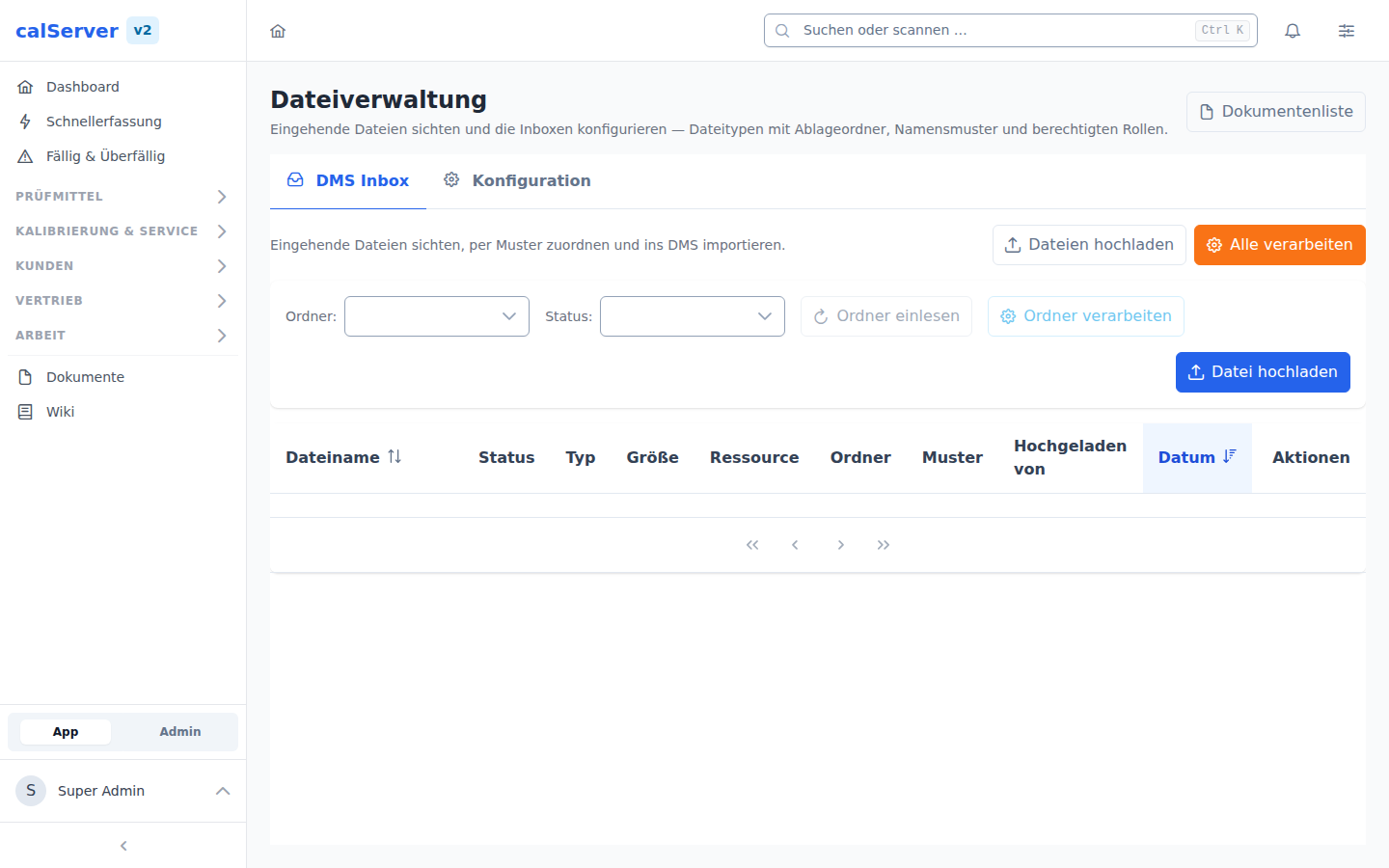
Under Administration > Files (/v2/admin/files), the configuration of file storage and the document management system is managed.
Storage Backends
calServer v2 supports various storage backends:
| Backend | Description |
|---|---|
| Local | Files in the container file system |
| FTP | External FTP server |
| SFTP | Encrypted SFTP server |
| S3 | Amazon S3 or compatible services |
| DigitalOcean Spaces | DigitalOcean Object Storage |
Configuration
Storage configuration is done via:
- Environment variables for basic setup
- Admin interface for fine-grained control
| Setting | Description |
|---|---|
| Default Backend | Where new files are stored |
| Maximum File Size | Allowed file size per upload |
| Allowed File Types | Permitted file extensions |
| Path Structure | Directory structure for files |
DMS Inbox
The DMS inbox enables automated file import:
- Review and configuration under Administration > File Management (
/v2/admin/files) — tab DMS Inbox and tab Konfiguration respectively - Activation via
DMS_INBOX_ENABLED=true - Automatic processing every 5 minutes (configurable)
- Files are assigned to inventory items based on naming conventions
"DMS Browser" tab: see what is actually stored
The tab lists the directories calServer V2 uses — DMS storage, inbox and the V1 file manager tree — together with the paths the server actually reads. It is read-only: new files arrive through the inbox so that they are versioned and released.
Details (storage layout, why nothing is written, correcting misfiled files): DMS Browser.
Document Approval
Through Document Approval, documents can follow a versioning workflow:
- Draft → Approved → Archived
- Every version is saved
- Only approved versions are visible to end users
Signatures
Under Signature Configuration, the signature places for reports are set up: this is where the handwritten signature is stamped into the PDF. It is neither a seal nor a cryptographic signature — see Setting up seals.