Master Reports
Under Administration > Report Management > Settings > Master Reports, you manage JasperReports-based output documents. The configuration comprises five sections: Report Files, Template Files, Custom Variables, Signatures, and Approvals.
Master Report Files
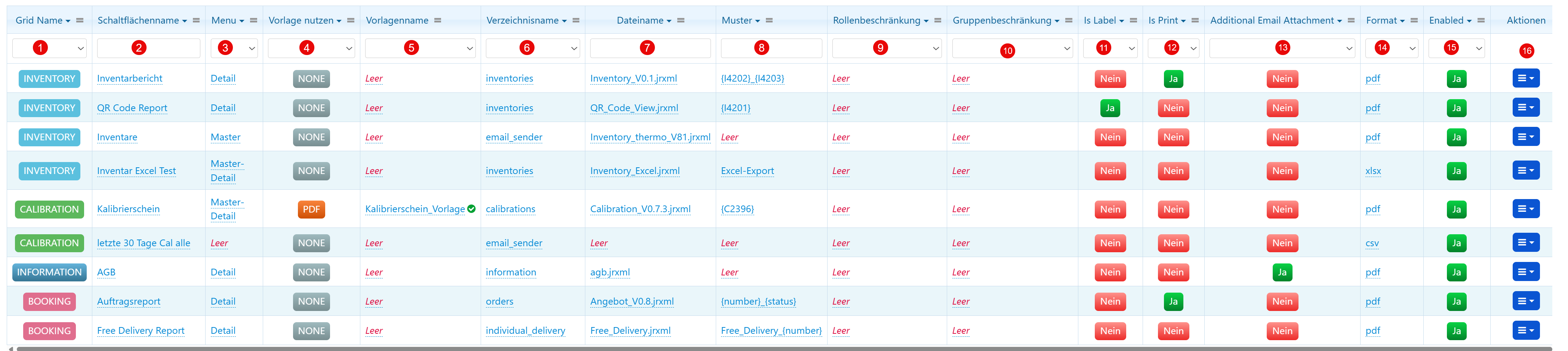
In the report management, you configure all JasperReports-based output documents available to users in the Inventory, Calibration, Booking, and other modules.
| Field | Description |
|---|---|
| Grid Name | Module assignment (e.g., INVENTORY, CALIBRATION). |
| Button Name | Name of the report in the frontend menu. |
| Menu | Assignment to a navigation menu (Detail, Master). |
| Use Template | Indicator whether the report is based on a PDF/Excel template (NONE, PDF). |
| Template Name | Internal name of the linked Jasper template (JRXML). |
| Directory Name | Folder where the template file is stored. |
| File Name | Specific file name of the report template. |
| Pattern | Placeholder for dynamic file names at runtime. |
| Role Restriction | Optional restriction to specific user roles. |
| Group Restriction | Optional restriction to specific user groups. |
| Is Label | Marks the report as label printing. |
| Is Print | Determines whether the report is directly printable. |
| Additional Email Attachment | Report is attached to automated emails. |
| Format | Output format (pdf, xlsx, csv). |
| Enabled | Activates or deactivates the report. |
| Actions | Edit, copy, preview, delete. |
Tip
Changes to templates should be made using a new file name. Deactivate the old version instead of overwriting it.
PDF Templates
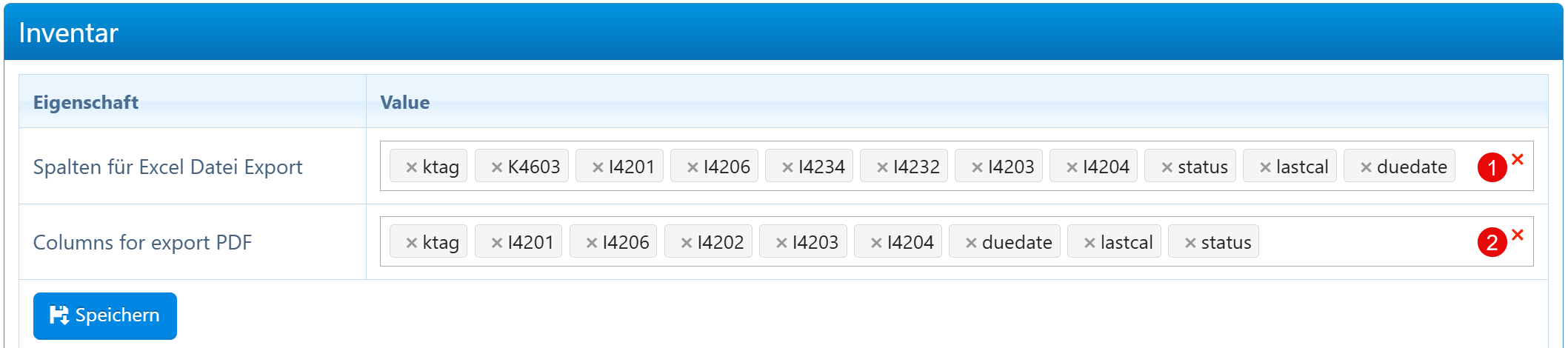
Static PDF templates (e.g., letterhead, logos, footers) are uploaded via drag-and-drop and used as layout backgrounds in JasperReports.
| Field | Description |
|---|---|
| Upload Zone | Drag-and-drop area for new PDF templates. |
| Template Name | File name of the template. |
| File Size | File size. |
| First Page | Main page of the template (e.g., page 1). |
| Other Page | Subsequent or back pages for multi-page templates. |
| Actions | Download, replace, delete. |
HTML Templates
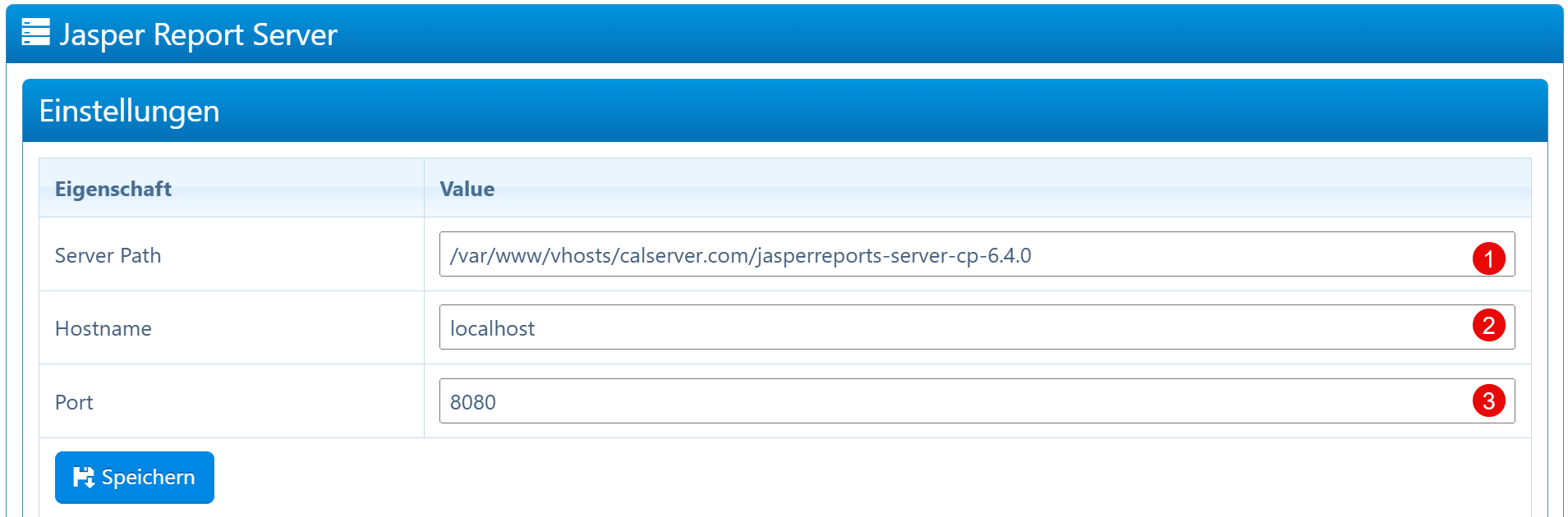
Dynamic HTML fragments (e.g., report footer with company details and bank information) are edited via a WYSIWYG editor and automatically embedded during PDF generation.
| Field | Description |
|---|---|
| WYSIWYG Toolbar | Formatting and insertion tools for HTML editing. |
| Template Content | HTML code of the report footer. Placeholders like {{DATE}} or {{DOC_NO}} are resolved at runtime. |
Custom Report Variables
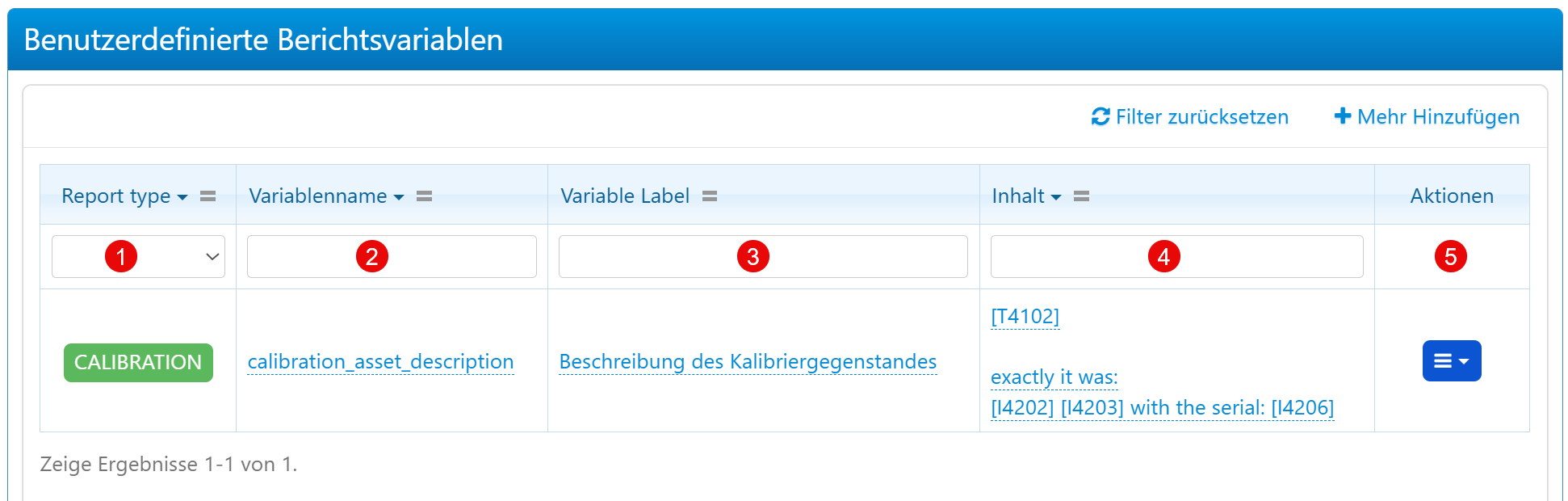
Variables that can be dynamically inserted into reports.
| Field | Description |
|---|---|
| Report type | Report type to which the variable is assigned. |
| Variable Name | Unique technical name for internal referencing. |
| Variable Label | Display name in reports and interface. |
| Content | Value, text block, or dynamic expression. |
| Actions | Edit or delete the variable. |
Signatures
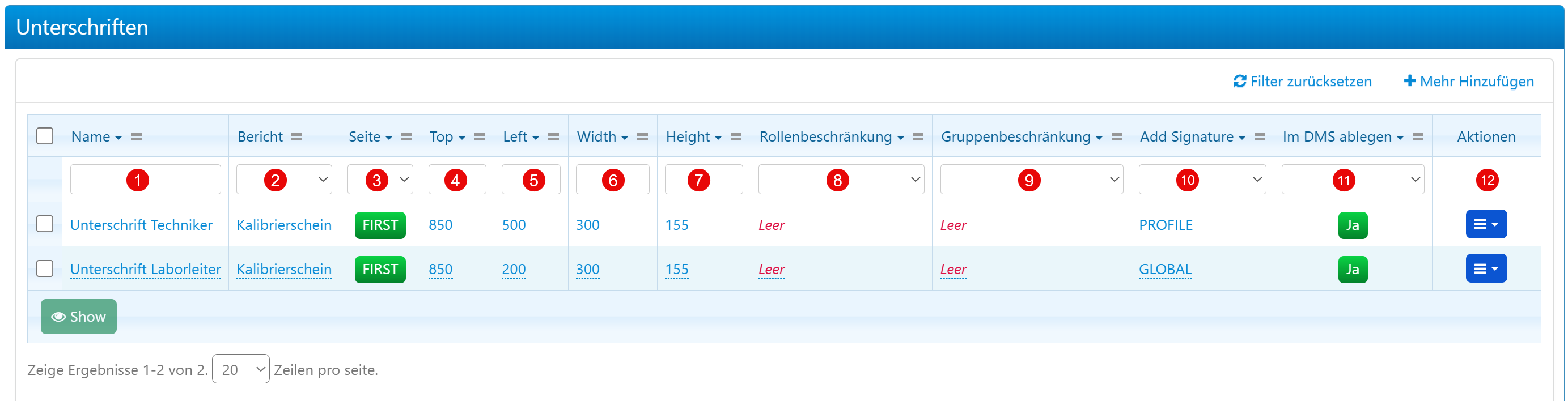
Digital signatures are assigned to reports and precisely positioned within the document.
| Field | Description |
|---|---|
| Name | Name of the signature. |
| Report | Assigned report type (e.g., calibration certificate). |
| Page | Page placement (e.g., FIRST). |
| Top / Left / Width / Height | Positioning and size in the document. |
| Role Restriction | Restriction to specific roles. |
| Group Restriction | Restriction to specific groups. |
| Add Signature | Type of signature (profile or global). |
| Store in DMS | Archival of the signature in the DMS. |
| Actions | Edit or delete. |
Approvals
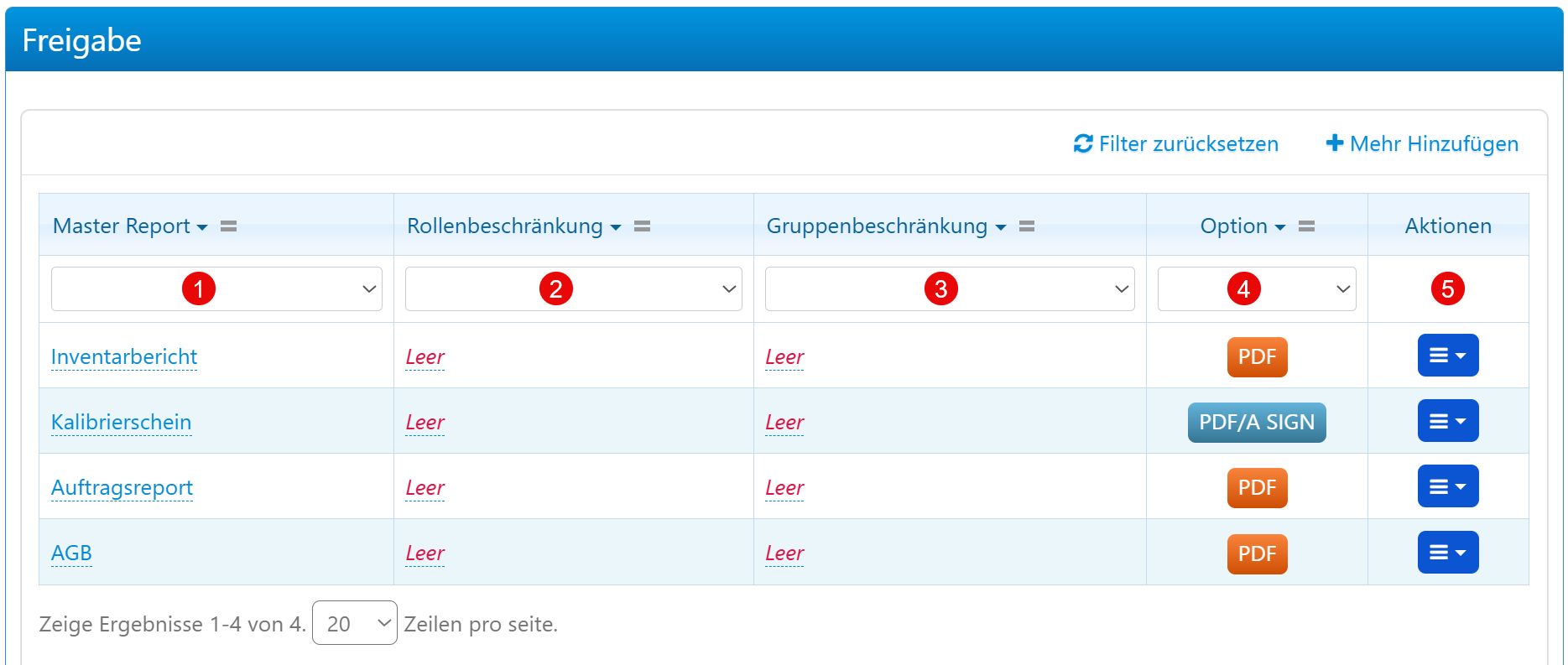
Approval rules control which reports may be generated and exported under which conditions.
| Field | Description |
|---|---|
| Master Report | Assigned report. |
| Role Restriction | Restriction to specific roles. |
| Group Restriction | Restriction to specific groups. |
| Option | Output format (e.g., PDF, PDF/A SIGN for signed documents). |
| Actions | Edit or delete the approval rule. |
Info
The PDF/A SIGN option generates a digitally signed PDF according to the PDF/A standard for long-term archival.