Task List
The task list provides a central overview, control, and maintenance of all tasks in the system. It is used in maintenance, support, and quality assurance processes and enables quick filtering as well as direct access to further actions per entry.
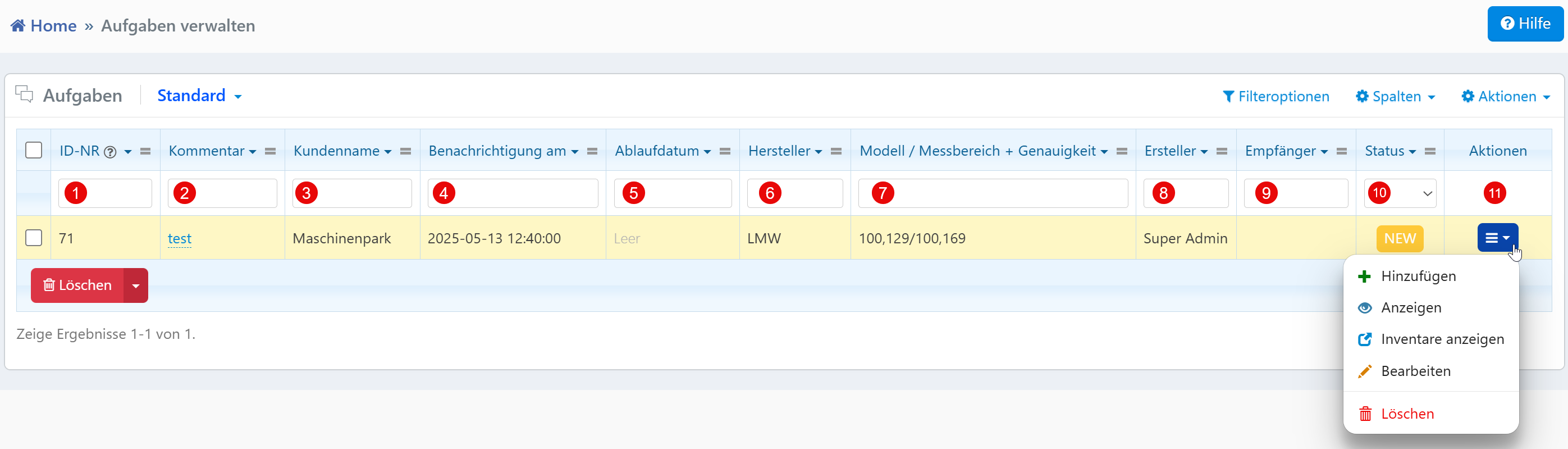
Table View
The filter row above the table enables targeted searching for tasks:
| No. | Column | Description |
|---|---|---|
| ① | ID No. | Unique identification number of the task |
| ② | Comment | Search for tasks via comments or keywords |
| ③ | Customer Name | Filter by the customer linked to the task |
| ④ | Notification On | Filter by the time of a planned notification |
| ⑤ | Expiration Date | Filter by set due date |
| ⑥ | Manufacturer | Filter by the manufacturer of the associated device |
| ⑦ | Model / Measurement Range + Accuracy | Search by technical details of the inventory |
| ⑧ | Creator | Filter by the user who created the task |
| ⑨ | Recipient | Search for tasks assigned to a specific handler |
| ⑩ | Status | Filter by processing status (e.g., NEW, IN PROGRESS, DONE) |
Multiple filters can be combined to narrow down results when task volume is high. The column configuration allows user-specific customization of column visibility.
Action Menu
The following functions are available via the action menu at the end of each row:
- Add -- Opens a form for creating a new task
- View -- Displays the task details in read mode
- View Inventory -- Opens linked inventory information for the associated device
- Edit -- Opens the task editing form with all available fields
- Delete -- Permanently removes the task after a confirmation prompt
Bulk Actions
By selecting multiple entries via the checkboxes on the left, tasks can be deleted or processed in bulk.
Note for Administrators
Actions such as Edit and Delete are usually controlled by roles. Changes and status transitions should be traceably stored in a change log.