Info Bar
The info bar (top menu) in calServer provides central navigation for important functions, notifications, and user management. It is divided into three areas.
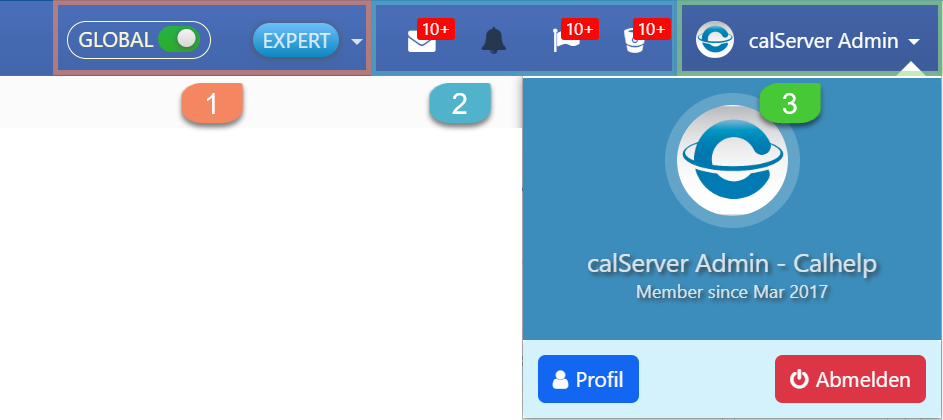
Elements
| No. | Element | Description |
|---|---|---|
| ① | Envelope icon – Tasks | Displays assigned tasks. Only visible to users with permissions in the task module. |
| ② | Bell icon – DUE | Indicates upcoming calibrations due soon. Direct access to affected devices. |
| ③ | Flag icon – OVERDUE | Indicates already expired calibrations. Enables direct initiation of corrective actions. |
| ④ | Ticket icon – Support | Displays assigned support tickets. Direct access to open requests. |
| ⑤ | User menu | Display name and organization. Dropdown with options: Profile and Log Out. |
Role-Based Display
- The visible elements of the info bar are controlled on a role basis.
- Certain icons and functions are only displayed for users with the corresponding permissions.
- Access rights depend on the user role and the activated modules.
- Administrators or power users generally have extended permissions, while standard users can only access relevant functions.
Notification System and Quick Access
The following icons appear only when the user role authorizes the respective module:
Envelope Icon -- Task Management
- Displays assigned tasks and provides a quick start function.
- Only visible to users with the corresponding permissions in the task module.
Bell Icon -- Expiring Inventories (DUE)
- Indicates inventories that need to be calibrated soon (DUE area).
- Provides direct access to the affected devices.
- Only visible to users with permissions in the inventory and calibration module.
Flag Icon -- Expired Inventories (OVERDUE)
- Indicates already expired inventories in the OVERDUE area.
- Provides direct access to initiate calibrations or further corrective actions.
- Only visible to users with permissions in the calibration and maintenance module.
Ticket Icon -- Assigned Tickets
- Displays assigned support tickets from ticket management.
- Provides direct access to open requests.
- Only visible to users with permissions in the support and ticket management module.
User Menu
In the upper right area of the info bar, the user menu is located with the following elements:
- Display name with associated organization
- Dropdown menu with the following options:
- Profile: Opens the user settings and personal information.
- Log Out: Logs the user out of the system.
Depending on the user role, additional settings may be available.