File Management
Under Administration > File Management, you configure the Document Management System (DMS) of calServer. Management is divided into File Settings, File Links, External Documents, and the DMS Browser.
File Settings
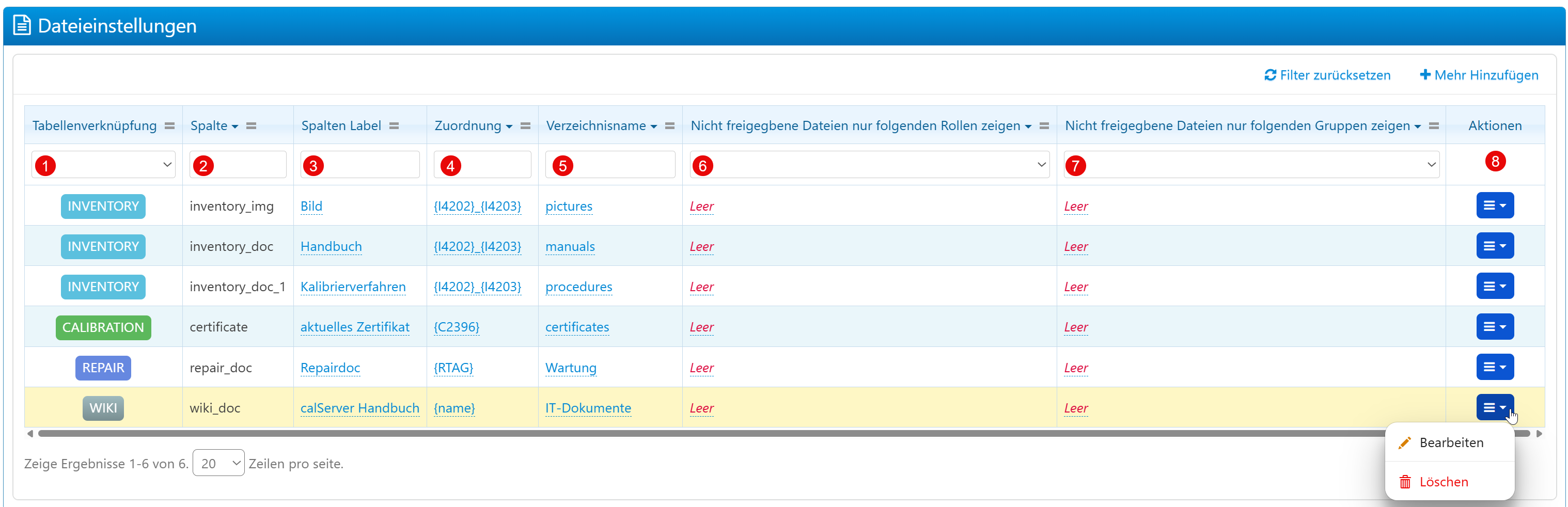
In the file settings, you define which documents are referenced via database columns in which modules and into which DMS directories the files are stored.
| Field | Description |
|---|---|
| Table Link | Associated module (e.g., INVENTORY, REPAIR, WIKI). |
| Column | Technical name of the column for the file information. |
| Column Label | Display name in the frontend. |
| Assignment | Placeholder logic for dynamic naming (e.g., {name}, {RTAG}). |
| Directory Name | Target directory in the DMS (e.g., "manuals", "certificates"). |
| Show only role-based released files | Restricts visibility to specific roles. |
| Show only group-based released files | Restricts visibility to specific groups. |
| Actions | Edit or delete the file assignment. |
Info
Deleting a file assignment only removes the configuration, not the physical file in the DMS.
File Patterns (the "Assignment" field)
The Assignment field defines how a file name is automatically matched to a record (e.g. an inventory item). When the inbox folder is processed, calServer checks every file against the configured pattern and, on a match, stores it in the DMS with full versioning.
A pattern consists of placeholders in curly braces { } with arbitrary literal text in between (e.g. separators such as - or _).
Available placeholders
| Placeholder | Meaning |
|---|---|
{COLUMN} |
Field placeholder – replaced by the value of the given database column of the record (e.g. {I4201} = inventory number, {name}, {RTAG}). The file name must exactly equal the assembled value. |
{order-id} |
Links the file via the booking/order ID. |
{repair-id} |
Links the file via the repair ID (RTAG). |
{#ANY#} |
Wildcard – matches any text. The file name is matched with LIKE; the variable part is free. Multiple files can belong to one record. |
{#IGNORE#} |
Like {#ANY#}, but the variable part of the name is additionally ignored for versioning (each file is stored independently, no name-based version grouping). |
| Literal text | Characters outside the braces (e.g. -, _) must appear at exactly that position in the file name. |
What to enter for "ANY"
Enter the wildcard placeholder fully, with the hash signs and curly braces:
(or {#IGNORE#}). Entering just ANY is not sufficient.
Examples
| Pattern | Matches file name | Result |
|---|---|---|
{I4201} |
dummy_hbr.pdf |
Exact match via the inventory number. |
{I4201}-{I4202} |
dummy_hbr-2024.pdf |
Assembled from two fields, separated by -. |
{I4201}{#ANY#} |
dummy_hbr_Blatt2.pdf, dummy_hbr_Sicherheitsblatt.pdf |
Starts with the inventory number, rest is free – multiple documents possible. |
{repair-id}{#ANY#} |
R-1052_test-report.pdf |
Starts with the repair ID, rest is free. |
Display in the frontend
For wildcard patterns ({#ANY#}/{#IGNORE#}), all matching current documents (is_latest) are listed under Documents in the record's detail view – not just a single file.
File Links
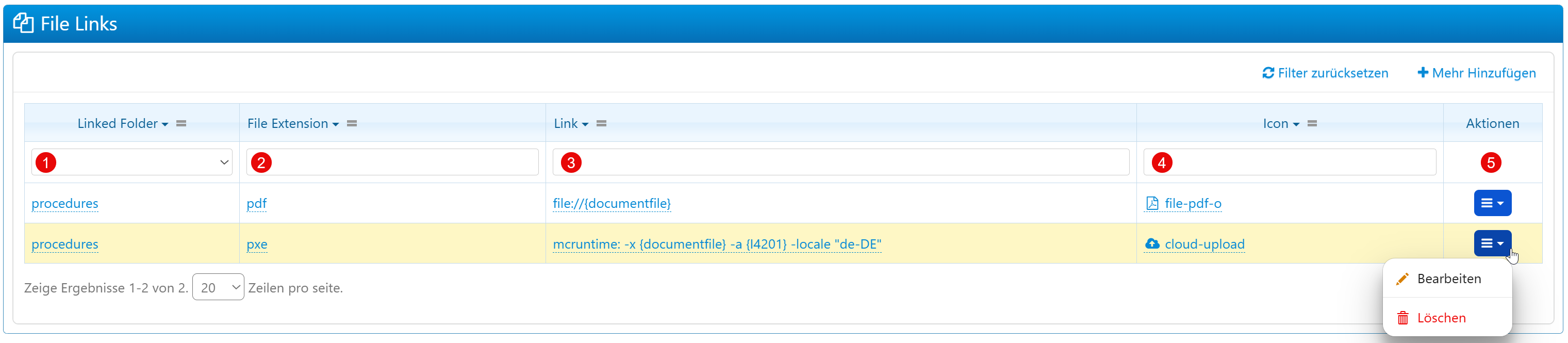
File Links define actions or links for files with specific extensions in specific folders. This allows files to be linked with external programs or special commands.
| Field | Description |
|---|---|
| Linked Folder | DMS folder for which the rule applies. |
| File Extension | File extension (e.g., .pdf, .pxe). |
| Link | URL, file path, or execution command. Placeholders like {documentfile} are possible. |
| Icon | CSS class or icon reference for display in the file browser. |
| Actions | Edit or delete the link. |
External Document Settings

The automatic integration of external documents monitors a file system path and transfers newly detected files to a DMS target directory.
| Field | Description |
|---|---|
| External Documents Folder | Monitored source directory on the file system. |
| Target Inbox Folder | Target folder in the DMS (e.g., "certificates"). |
| Check for new Documents Interval | Check interval in minutes. |
Warning
Intervals that are too small can increase system load with large data volumes. Intervals that are too large delay data availability.
DMS Browser
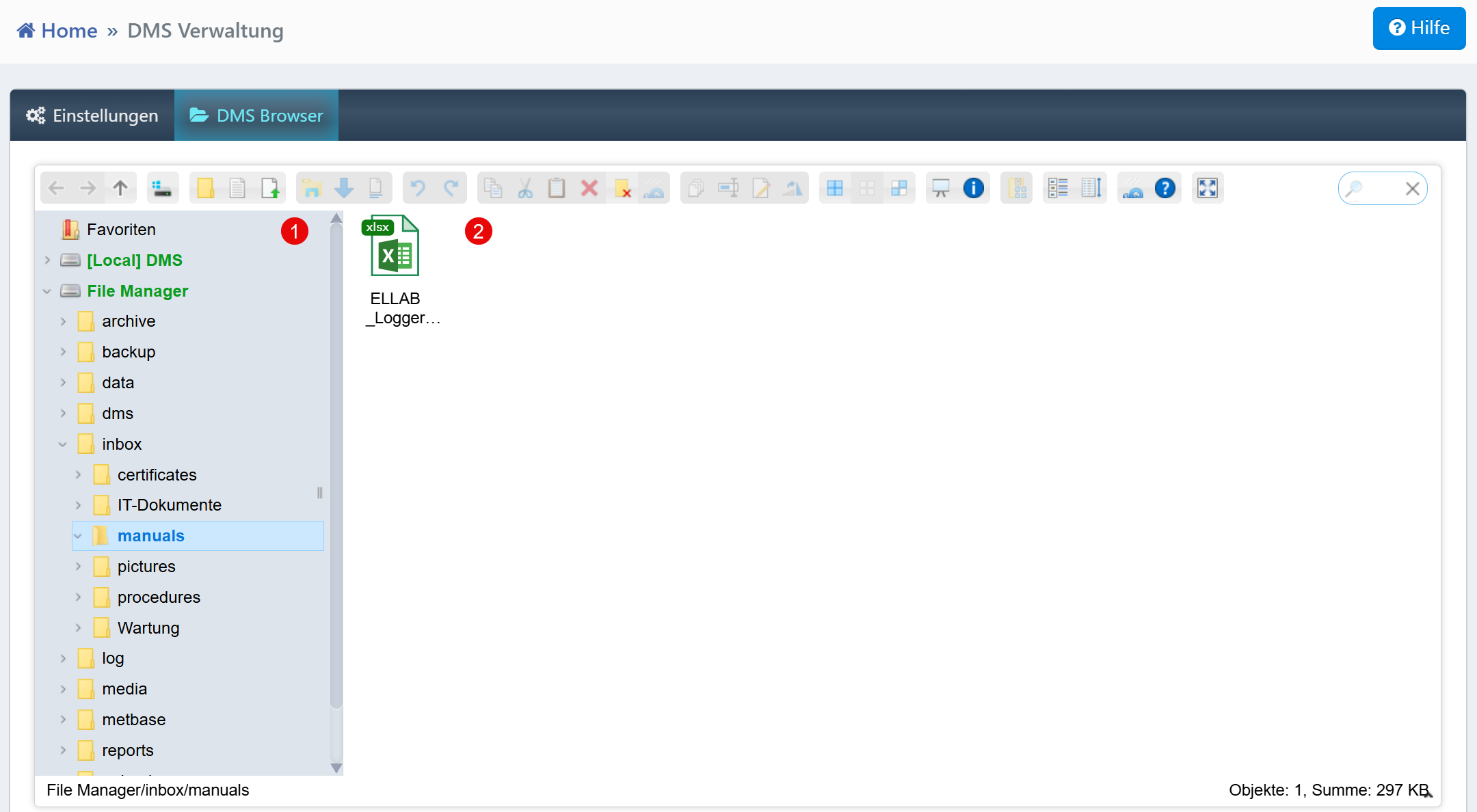
The DMS Browser provides a file-system-like view for navigating, managing, and opening documents.
| Area | Description |
|---|---|
| Navigation Tree (left) | Hierarchical folder structure of the DMS. |
| File Overview (right) | Files in the currently selected directory with file type icons. |
| Toolbar (top) | Upload, rename, copy, cut, delete. |
| Search Field | Full-text search in the current directory. |
Business Continuity: DMS Index File
Each time the DMS is updated, an index file (contents.csv) is automatically created. This contains metadata for all stored documents and enables manual access to customer certificates in the event of server failures.
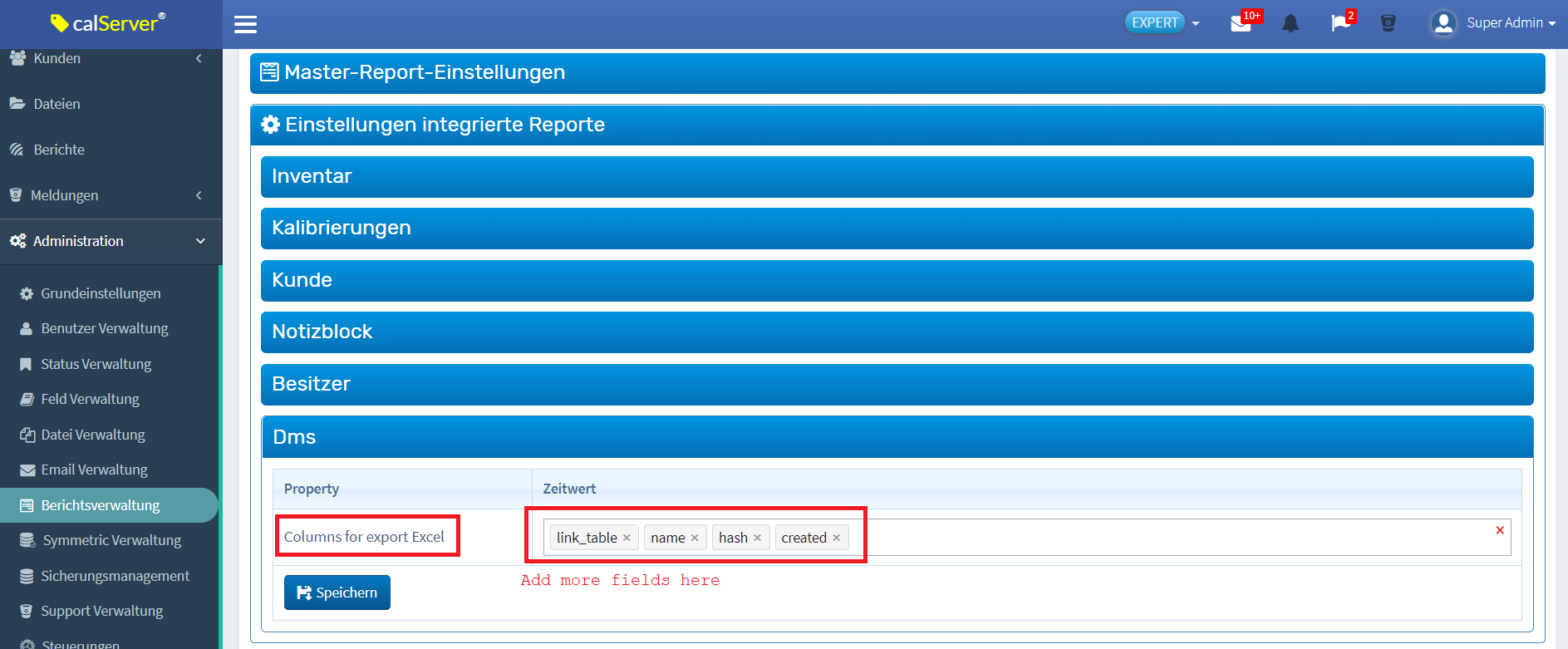
The index file contains the following fields:
| Field | Description |
|---|---|
| link_table | Directory or table of the file storage. |
| name | Original file name. |
| hash | Unique DMS storage name (hash). |
| created | Upload date. |
| major_version | Major version number (incremented on release). |
| minor_version | Minor version number (incremented on upload). |
| status | Processing status (e.g., "Upload", "Release"). |
| filename | Actual file name in the system. |
| is_latest | Indicator of the most recent version. |
| created_by | Creator of the file. |
Tip
Back up the contents.csv on a separate server or in the cloud to keep it available even in the event of a complete server failure.