Field Management
Under Administration > Field Management, you customize all data fields of the calServer application individually. Field management is divided into three functional areas: Field Configuration, Field Order, and Table Templates.
Field Configuration
Field Configuration is the central tool for individually setting up all data fields. Here you define how each field behaves in the user interface.
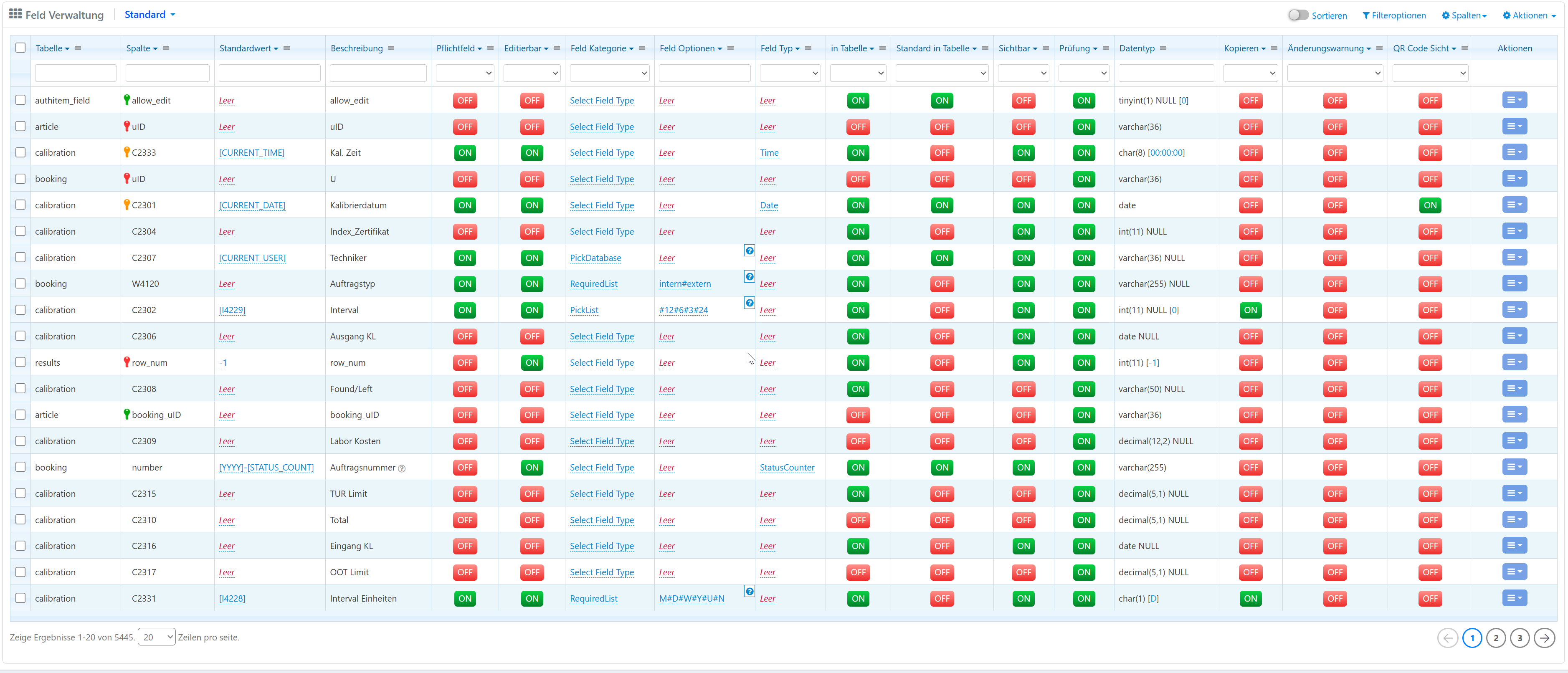
Configurable Data Areas
- Inventories
- Calibrations
- Locations (Loan List)
- Repairs
- Customers
- Orders
Key Field Options
| Field | Description |
|---|---|
| Table | Assignment to the database table (e.g., inventory, calibration). |
| Column | Technical database name of the field (e.g., C2301). |
| Default Value | Pre-filled value for new entries (e.g., [CURRENT_DATE] for the current date). |
| Description | Label of the field in the application, customizable per language via the language management. |
| Required Field | Input is mandatory (On/Off). |
| Editable | Field may be edited by the user (On/Off). Actual editability also depends on role settings. |
| Field Category | Logical grouping (e.g., PickList). |
| Field Options | Predefined list values or combo values for selection lists. |
| Field Type | Data type (e.g., Date, Time). Affects the provided input aids. |
| In Table | Field is available in the grid field selection (On/Off). |
| Default In Table | Field is automatically displayed when opening a grid view (On/Off). |
| Visible | Field is visible in the detail view (On/Off). |
| Audit (Audit Trail) | Changes to the field value are logged (On/Off). |
| Data Type | SQL data type (e.g., varchar(255)). |
| Copy | Field value is carried over when duplicating a record (On/Off). |
| Change Warning | Notification on value change (On/Off). |
| QR Code Visible | Field is displayed in the automatically generated QR code (On/Off). |
| Actions | Edit, delete, configure additional settings. |
Adjust Field Order
In this area, you determine the arrangement and grouping of data fields within forms and detail views. Using a drag-and-drop interface, you move fields to the desired position.
Table Templates
Table templates enable the creation of individual views for all table overviews (grids) in calServer.
You can define:
- Which fields are displayed by default in tables
- The order of columns
- Preconfigured filter and sort settings
- Role-specific presets (e.g., for technicians, administrative staff, laboratory employees)
Multiple table templates per module are possible. Users can switch between available views.
Notes
- Field configuration directly affects the generation of grids, detail views, and popups.
- Changes to required fields and visibility take immediate effect on the user interface.
- Table templates can be transferred between calServer instances.