Create Inventory
New inventories are created via the menu item Inventory --> New Inventory. The input form is individually configurable via field management.
Open the Form
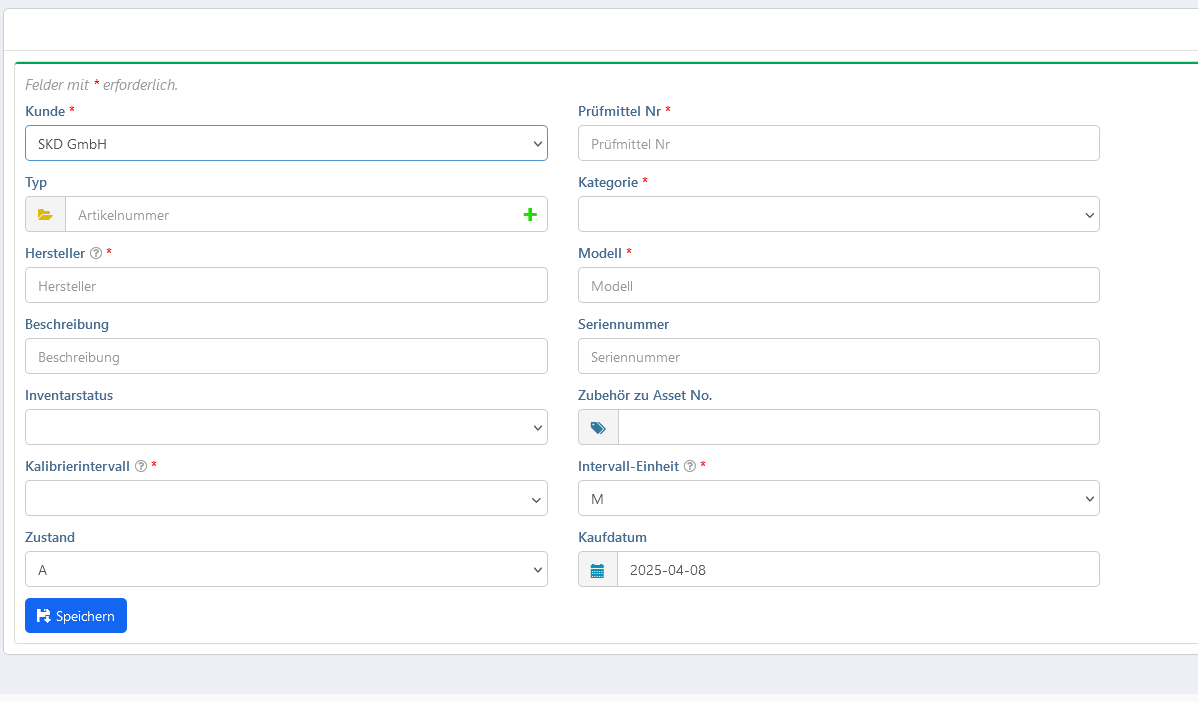
Navigate in the menu to Inventory --> New Inventory. An empty input form will open.

Fields
The form consists of mandatory and optional fields. Mandatory fields are marked with a red asterisk (*).
| No. | Field Name | Description |
|---|---|---|
| ① | Inventory Number* | Unique identification number of the inventory. |
| ② | Type | Selection from existing types (combination of manufacturer and model). When selected, manufacturer, model, and description are automatically filled in. Additionally, type-specific data such as billing rates, inspection procedures, or measurement descriptions may be stored. |
| ③ | Manufacturer* | Name of the device manufacturer. |
| ④ | Model* | Model designation of the inventory. |
| ⑤ | Category* | One or more categories. The selection can dynamically change the input form. |
| ⑥ | Inventory Status | Status of the inventory (e.g., active, out of service). |
| ⑦ | Serial Number | Serial number of the inventory. |
| ⑧ | Calibration Interval* | Interval of calibration. |
| ⑨ | Interval Unit* | Unit of the calibration interval (D = Days, M = Months, Y = Years). |
| ⑩ | Purchase Date | Date of acquisition. |
Depending on the configuration, additional optional fields may be displayed.
Category and Dynamic Fields
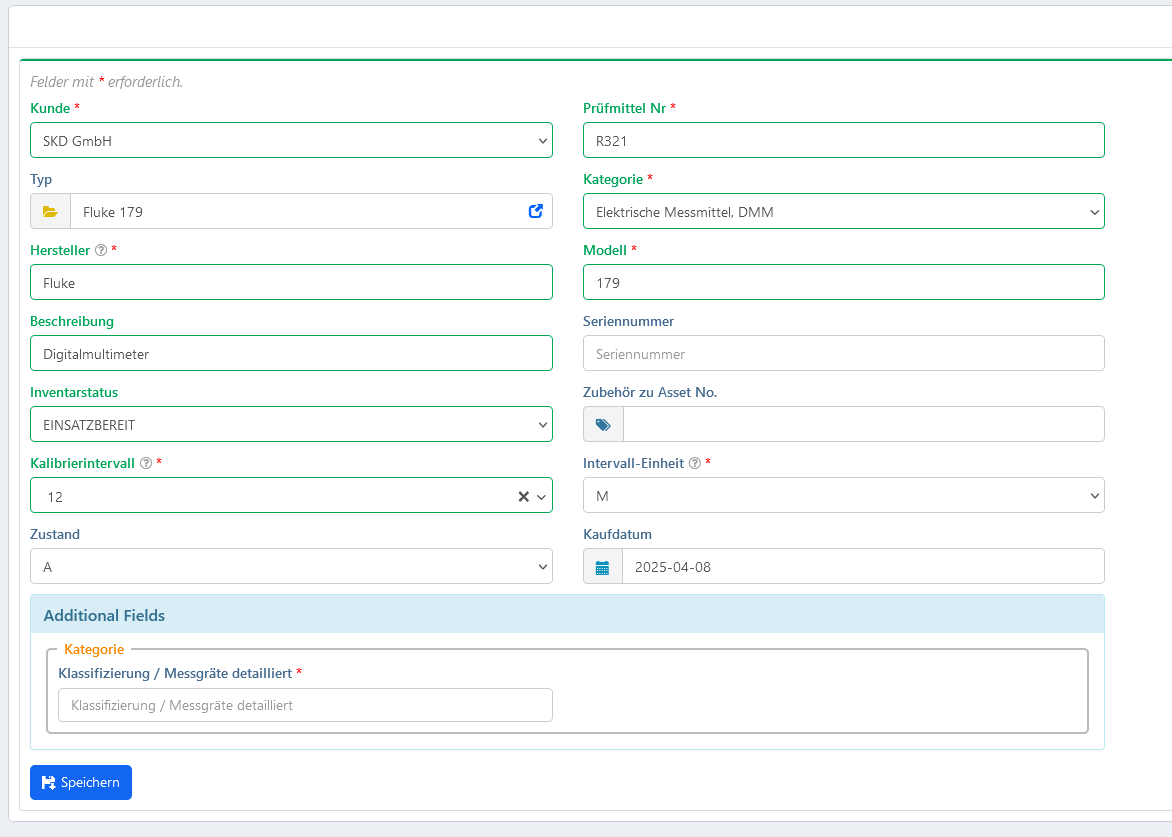
When selecting a category, additional category-specific fields can be automatically displayed and activated as mandatory fields.
Example: When selecting the category Electrical Measuring Instruments --> DMM, the additional mandatory field Classification / Measuring Instruments Detailed appears.
Type Selection
When an existing type is selected in the "Type" field:
- Manufacturer, model, and description are automatically filled in.
- The inventory is assigned to this type.
- Type-specific information (billing rates, inspection procedures, measurement descriptions) is directly available.
This speeds up the creation of similar inventories.
Save
After filling in all mandatory fields, click Save. The inventory will be saved and displayed in the inventory list.
Field Configuration
Display, naming, and order of fields are configurable via field management. The configuration is done in the admin area and directly affects the frontend form.