Navigation and Menu
The main menu and navigation in calServer provide quick access to all relevant functions. Navigation is done via a clearly structured sidebar that dynamically adapts based on the user role.

User Roles and Visibility
The main menu is role-based. Depending on the assigned permissions, certain menu items are shown or hidden. This way, users only see the functions relevant to them.
Operating Concept
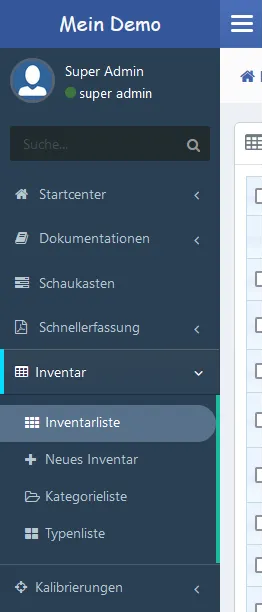
Navigation is done via the left sidebar, which contains all main modules. It can be expanded or collapsed using the hamburger menu.
Since the design is responsive, the main menu is automatically hidden on smaller screens to save space. It can be reopened at any time using the hamburger menu.
The quick search allows you to find specific entries, while the info bar at the top of the system displays notifications and system messages.
Areas
| No. | Element | Description |
|---|---|---|
| ① | Hamburger menu | Button to expand or collapse the sidebar. Hidden by default on small screens. |
| ② | Sidebar (main menu) | Left navigation with all main modules. Role-based – only authorized entries are displayed. |
| ③ | Quick search | Input field for targeted search of entries across the entire system. |
| ④ | Info bar (top menu) | Top bar with notifications, system messages, and user profile access. |
Customization Options
- The menu structure can be individually configured according to company requirements.
- In the basic settings, CI elements such as the system name can be customized.
- Role-based access rights control which users see which menu items.
Main Menu Tree
The main menu is the central navigation structure and provides quick access to the various modules. The display of menu entries can be customized on a role basis.
- Start Center -- Overview of current tasks, statistics, and system messages.
- Documentation -- Management of documents and instructions.
- Documentation Overview -- Display of all stored documentation.
- Page List -- Management of individual documentation pages.
- New Page -- Creation of new documentation content.
- Document List -- Overview of all uploaded documents.
- Language List -- Management of language versions of documentation.
- Showcase -- Display of important information (internal only).
- Quick Entry -- Direct input of new data without detours.
- Record Status -- Change the status of entries.
- Record Documents -- Upload new documents.
- Quick Report -- Create a report with just a few clicks.
- Table Import -- Import data records via tables.
- Inventories -- Management and organization of devices and assets.
- Inventory List -- Overview of all recorded inventories.
- New Inventory -- Create new inventory items.
- Category List -- Management of categories for inventories.
- Type List -- Classification of inventory types.
- Calibrations -- Management of testing and calibration processes.
- Calibration List -- List of all calibrations.
- New Calibration -- Record a new calibration.
- Procedure Templates -- Templates for standardized calibration processes.
- Maintenance -- Planning and documentation of maintenance work.
- Maintenance Overview -- Overview of planned and completed maintenance.
- New Maintenance -- Create a new maintenance task.
- New Location -- Management and assignment of new locations.
- Loan Equipment -- Organization of loan devices and their reservations.
- Reservations -- Management of reservations.
- Loan List -- Overview of available and loaned devices.
- New Location -- Management of location information for loan devices.
- Orders -- Recording and management of customer orders.
- Order List -- Overview of all orders.
- New Order -- Creation of new orders.
- Category List -- Management of order types.
- Article List -- Management of associated articles.
- Prices -- Management of price lists and individual price groups.
- Price List -- Overview of stored prices.
- New Price -- Creation of a new price entry.
- Price Group List -- Management of price groups.
- Tasks -- Management and organization of work orders.
- Task Overview -- Display of all open and completed tasks.
- Task List -- Management and assignment of tasks.
- New Task -- Create a new task.
- Customers -- Management of customer master data and contacts.
- Customer List -- Overview of all customers.
- New Customer -- Record a new customer.
- Contact List -- Management of contacts.
- Files -- Management and storage of documents.
- Reports -- Management of report templates, export functions, and digital signatures for reports.
- Support -- Access to the ticket system and help requests.
- My Tickets -- Overview of own support requests.
- New Report -- Creation of a new support request.
- Administration -- System configuration and user management.
- Basic Settings -- General configuration settings.
- User Management -- Management of user accounts and permissions.
- Status Management -- Customization of status definitions.
- Field Management -- Configuration of database fields.
- File Management -- Organization and management of files.
- Email Management -- Control of automated email notifications.
- Report Management -- Management of report templates and export functions.
- Synchronization -- Synchronization with external systems, such as FLUKE MET/TRACK.
- Backup Management -- Management of backups and restorations.
- Notification Management -- Configuration of system notifications.
- Help Management -- Provision of internal help pages.
- Information -- Display of system status and version information.
Navigation in the System
Main Navigation (Sidebar)
- The main menu is located on the left and remains visible during use.
- Clicking on a main category opens the associated submenu.
- Icons and labels facilitate quick orientation.
- Unnecessary menu entries may be hidden depending on role and permission configuration.
Top Navigation Bar (Info Bar)
- Display of important system messages, notifications, and tasks.
- Access to the user profile and personal settings.
- Quick switching between main functions.
On-Page Navigation
- Each opened page contains a breadcrumb menu that enables hierarchical navigation.
- By clicking on the respective entries, you can quickly switch between parent levels.